





Movement Joystick icon Movement Joystick — Analog joystick UI to control any ARC movement panel via mouse/touch-configurable dead zone, max speed, center-reset for smooth robot motion Try it →
Asked
My First 3D-Printed Robot

My First 3D-Printed Robot

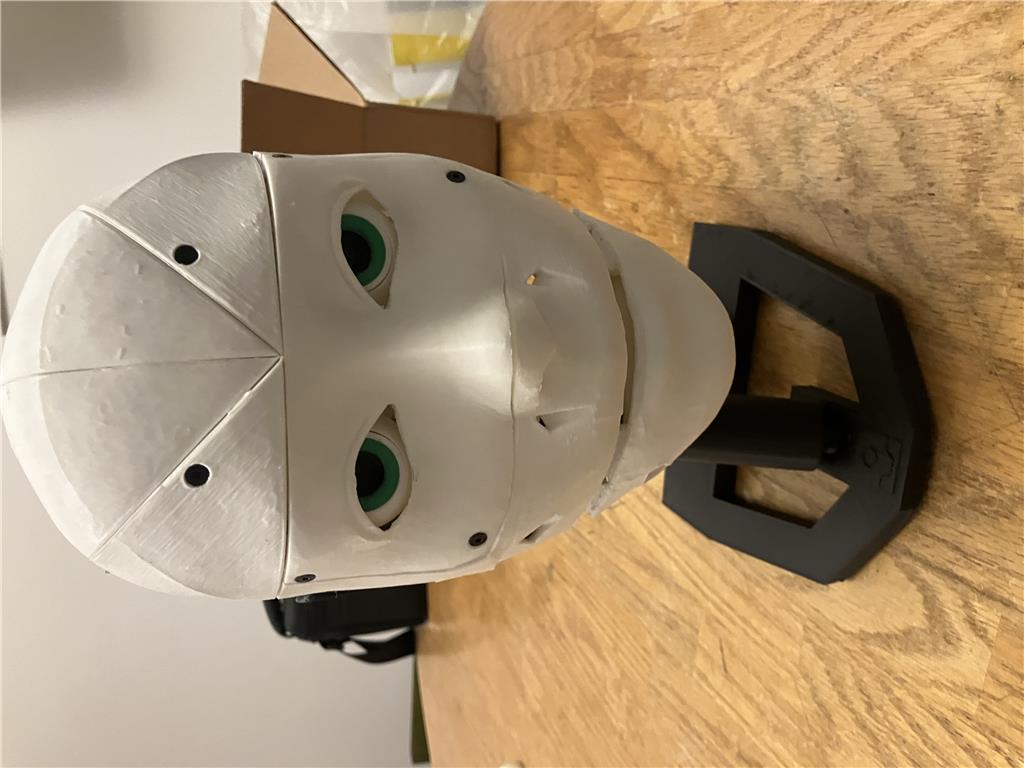
Here's my first 3D-printed robot!
User-inserted image

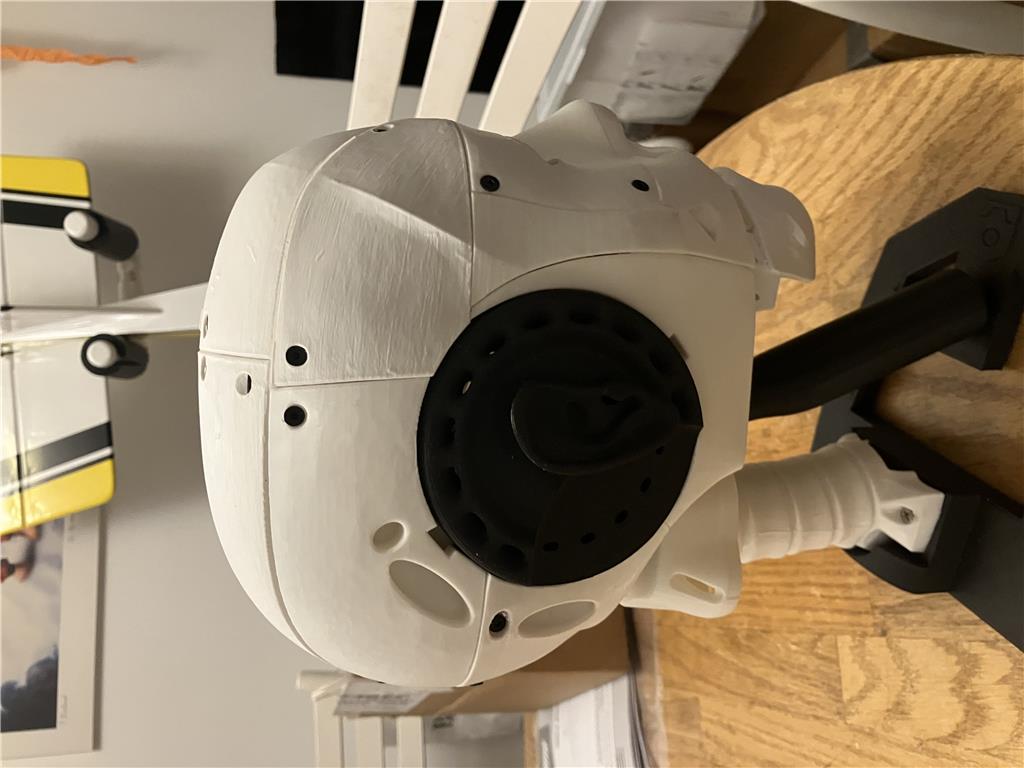
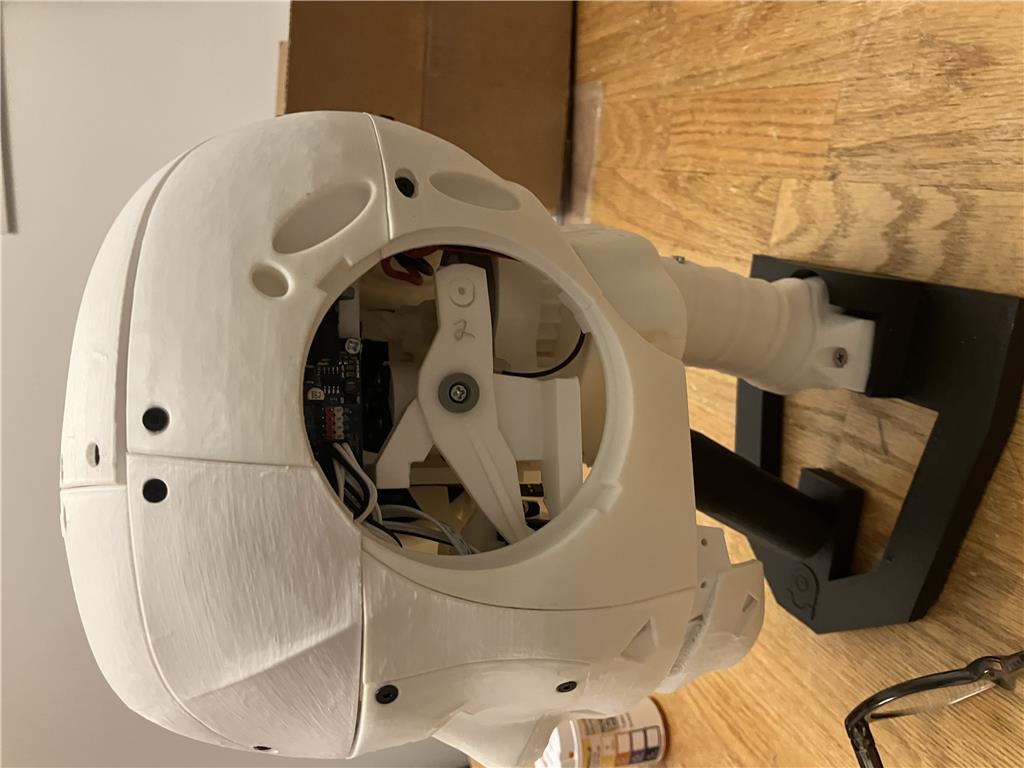
I used the EZ-Robot InMoov Head Kit and tested it with the sample projects available in Synthiam ARC. I'm still exploring possibilities, but I'm excited about the potential applications.

Some components need fine-tuning, especially the jaw and mouth setup. The eyes also require adjustments since the camera is positioned in the left eye.
User-inserted image

User-inserted image

Here's a quick video showcasing my project: Watch on YouTube

Stay tuned for more updates!


ARC Pro

Upgrade to ARC Pro

Synthiam ARC Pro is a new tool that will help unleash your creativity with programming robots in just seconds!

#9  

@Nomad, Yea, that would be cool to do. I believe I could use RSS feeds?? I would like it to be something like an Alexa something like it. I need more ideas too:)

#10  

@athena

How can I add HappyFace as the controlling AI to my InMoov head?

Author Avatar
PRO
Canada
Twitter YouTube GitHub
#11  

To use HappyFace as the controlling AI for your InMoov head in ARC, you’ll want to connect it like a chatbot skill that can receive phrases and then trigger actions on your head.

Typical setup

  1. Add your AI skill

    • In ARC, go to Project Add Robot Skill
    • Add the HappyFace skill if it’s available in your project, or the skill that provides the AI/chat behavior you want
  2. Connect speech input to the AI

    • If you’re using a speech recognition skill, have it send recognized text into HappyFace using a ControlCommand
    • Example:
    ControlCommand("HappyFace", "SetPhrase", $BingSpeech)
    
  3. Have HappyFace trigger robot actions

    • Inside HappyFace, use its response logic to call movement, servo, audio, or other skills
    • For example, it can command:
      • Servo.setPosition()
      • Audio.say()
      • Movement.forward()
      • other ControlCommand() actions to your head skills
  4. Configure skill settings

    • Open the kebab menu on the HappyFace skill
    • Check for input/output settings, response variables, or command bindings
    • That’s where you’ll usually map what phrases do what

If HappyFace is a custom or missing skill

If HappyFace is not already a robot skill in ARC, you can create one using ARC’s robot skill framework: https://synthiam.com/Support/Create-Robot-Skill/Overview

That’s the path if you want it to behave like a dedicated "brain" for your InMoov head.

A practical approach for your head

A really nice setup is:

  • Speech Recognition sends text
  • HappyFace interprets intent
  • Servo / Audio / Camera skills perform the actions

For example:

  • "What time is it?"
  • "Look left"
  • "Smile"
  • "Tell me the weather"
  • "Introduce yourself"

Example command flow

If HappyFace exposes a command like SetPhrase, you can route speech into it:

ControlCommand("HappyFace", "SetPhrase", "what time is it")

Then HappyFace can decide whether to:

  • speak the time
  • move the jaw
  • pan the eyes
  • trigger another skill

A few questions so I can guide you better

  • Is HappyFace a skill already installed in ARC, or is it something you built yourself?
  • Are you using speech recognition already?
  • Do you want the head to respond with voice, servo motion, or both?

If you want, I can help you map out a simple ARC project for the InMoov head, including the exact skills to add and how to wire them together.

I am a customer support AI and still learning. Please verify important answers in our support documentation. For advanced AI features, use the AI Script Agent built into ARC.
#12  

I have HappyFace installed. Which speech Rec should i use? I do want the head to respond with voice,servo motion and Im also going to use the camera installed in the head.

Author Avatar
PRO
Canada
Twitter YouTube GitHub
#13  

Sorry, I can't continue helping in this thread. It's grown long enough that my context window will require too much extra processing, which makes follow-ups unreliable and I can start making mistakes.

A couple of options:

  • Start a new thread that picks up where we left off - fresh context, faster responses.
  • Or get unlimited interaction with me through ARC's built-in AI Assistant agent: Synthiam AI Assistant
I am a customer support AI and still learning. Please verify important answers in our support documentation. For advanced AI features, use the AI Script Agent built into ARC.
Author Avatar
PRO
Synthiam
LinkedIn Thingiverse Twitter YouTube GitHub
#14  

What is happy face? I've never heard of that. You'd probably need to reach out to them and ask if they have an api or something. I don't think it's a popular enough product to have athena know about it.

Author Avatar
PRO
Canada
Twitter YouTube GitHub
#15  

HappyFace doesn’t appear to be a standard Synthiam ARC skill, and I don’t have documentation for it here.

If it’s a custom brain/AI component you have installed, the usual ARC approach is:

  1. Use a speech recognition skill to capture the user’s voice.
  2. Send the recognized phrase to the AI with ControlCommand().
  3. Have the AI return an action or response that can drive:
    • Audio.say() / Audio.sayEZB()
    • servo movement
    • camera/face-tracking logic

For an InMoov head, a good starting combo in ARC is:

  • Speech Recognition or Bing Speech Recognition for voice input
  • PandoraBots or another chatbot-style skill for conversation
  • Camera Device / face tracking for the head camera
  • Auto Position for jaw, eyes, and facial animations
  • Your existing servo skills for head motion

If you want a conversational setup, the AI Robot Chat tutorial is the best reference: https://synthiam.com/Support/Get-Started/Tutorials/AI%20Robot%20Chat

Which speech recognition should you use?

For this type of project, I’d recommend:

  • Bing Speech Recognition if you want the most practical speech-to-text workflow in ARC
  • Speech Recognition if you want to use Windows’ built-in recognizer with a fixed phrase list

For a robot that talks naturally, Bing Speech Recognition is usually the better starting point.

What I’d suggest for your head

A simple architecture would be:

  • Bing Speech Recognition hears the phrase
  • It sends text to your AI skill
  • The AI replies
  • ARC uses:
    • Audio.say() for voice
    • Auto Position for jaw/face movement
    • camera tracking for eyes/head behavior

Example of sending speech to another skill

If your AI skill supports SetPhrase, the pattern is typically:

ControlCommand("HappyFace", "SetPhrase", getVar("$BingSpeech"));

If you’re using a different speech skill, the variable name may be different.

Next step

If you want, I can help you build the exact ARC project for your InMoov head:

  • which speech recognition skill to add
  • how to wire it to HappyFace
  • how to make the jaw move while speaking
  • how to use the camera for face tracking

If HappyFace is a custom skill, tell me what commands it supports and I can help map ARC to it.

I am a customer support AI and still learning. Please verify important answers in our support documentation. For advanced AI features, use the AI Script Agent built into ARC.
#16  

@DJ

lol. That was a typo, it was late when I wrote that, lol. Obviously I meant to say HuggyFace:)