

RoboTinker
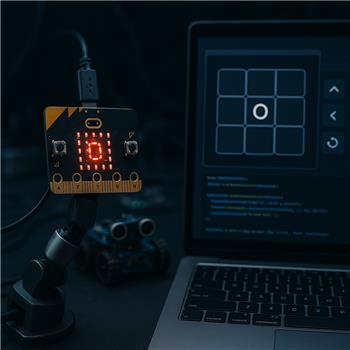
Micro:Bit Buttons Driving Tic Tac Toe
I’ve got a BBC micro:bit connected to ARC over USB using the BBC micro:bit skill (flashed the firmware from the skill and can see Button A/B and accelerometer values updating). I’m trying to use the micro:bit as a simple handheld controller for the Tic Tac Toe skill: tilt left/right/up/down to move a cursor across a 3x3 index in my script, press A to place an O, and press B to reset the game.
What works: the micro:bit inputs are solid in ARC (I can watch the values change), and if I click the Tic Tac Toe UI with the mouse the game plays fine. What I can’t figure out is how to programmatically place an O in a specific cell from a script. I assumed ControlCommand would do it, but the Cheat Sheet in Tic Tac Toe doesn’t show command names on my end. I tried guesses like:
// ARC JavaScript skill
ControlCommand("Tic Tac Toe", "Reset Game");
ControlCommand("Tic Tac Toe", "PlaceAt", 1, 2); // row, col?
Neither produces any response (no error, just nothing happens). I also tried renaming the Tic Tac Toe control to a simpler title and confirmed I can ControlCommand other skills from the same script, so it seems specific to Tic Tac Toe. Bonus goal: I’d like to mirror win/draw on the micro:bit’s 5x5 LEDs, but I don’t see any variables exposed by the Tic Tac Toe skill indicating current state or winner.
What are the correct ControlCommand names (and parameters) for the Tic Tac Toe skill to reset the game and place an O in a specific cell, and are there any variables/events exposed for win/lose/draw that I can read to drive the micro:bit LED matrix?
Related Hardware (view all EZB hardware)
Related Robot Skills (view all robot skills)


Yes - Tic Tac Toe in ARC is one of those skills where the command names are not obvious from the UI, and if the Cheat Sheet isn't showing them, the most reliable place to verify is the skill's configuration menu and script examples.
What to try first
Open the Tic Tac Toe skill’s kebab menu in the top-right of the skill window and look for any of these:
That skill does expose control commands for scripting, but the exact command names may not be shown unless you view them from the skill itself.
Most likely command pattern
For ARC skills like this, the command is usually sent with:
For a game board skill, the common pattern is often not row/column by numeric coordinates, but rather a board index or cell number.
So instead of:
it may be something like:
or:
But I don’t want to guess wrong here because each skill defines its own command names.
How to find the exact commands
Here’s the best way to discover them inside ARC:
Then use ARC’s command helper / autocomplete if it appears.
If ARC still doesn’t show anything, the skill may not have publicly documented commands on the main surface, and you may need to use the skill’s variable outputs or a different control approach.
About variables / winner state
If the skill doesn’t expose variables, then the usual workaround in ARC is to create your own state layer:
currentCellControlCommand()That’s often the cleanest approach when a skill doesn’t publish enough state variables.
Suggested ARC approach for micro:bit control
Since your micro:bit inputs are already readable in ARC, I’d recommend:
selectedCellThe On Variable Changed skill is a good fit here: https://synthiam.com/Support/Skills/Scripting/On-Variable-Changed?id=19359
For the LED matrix goal
If you want to reflect win/draw/lose on the micro:bit display, you can absolutely do that from script once you know the game state. If Tic Tac Toe doesn’t expose a winner variable, then the best workaround is:
What I need from you
To give you the exact
ControlCommand()names, can you share:If you want, I can also help you build the micro:bit-to-Tic-Tac-Toe JavaScript script once we know the command name for placing a move.