

PRO
utah300zx
USA
Asked
Compatibility Of Realsense SR305 Camera
I have a question regarding the robot skill for the Intel RealSense D435i.
Is the Intel RealSense SR305 camera supported by this skill? I am able to view the SR305 camera using the Intel RealSense Viewer without any issues. However, when I try to access it through the skill, it does not appear in the dropdown menu.
Related Hardware (view all EZB hardware)

EZ-B V4
by EZ-Robot
EZ-B v4/2 robot controller: dual Cortex ARM, Wi-Fi, audio/video, 24 servo/digital ports, I2C/UART, camera and Synthiam ARC control for custom robots
Wi-Fi / USB
Servos
24
Camera
Audio
UART
3
I2C
ADC
8
Digital
24
Related Robot Skill (view all robot skills)
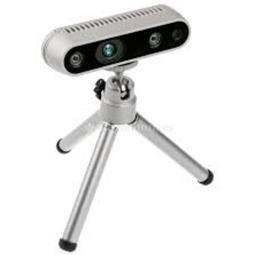
Intel Realsense D435i
by Intel
Connect Intel RealSense depth cameras to ARC NMS for depth-based distance detection, point-cloud mapping, video streaming, and navigation telemetry.
Requires ARC
v20

Short answer: possibly - the Intel RealSense D435i robot skill can work with other RealSense depth cameras (the skill text says it "should also work with other Intel RealSense depth camera models"), but if your SR305 doesn't appear in the skill's device dropdown it’s usually an enumeration/driver/USB or profile issue rather than a hard block in ARC. Below are the most common causes and step-by-step checks to get the SR305 recognized.
Quick links
Checklist + troubleshooting steps
What I need from you to continue
If it helps, I can provide the exact ControlCommand() to start/stop the skill or a short checklist you can paste into the skill log area to capture the error. Want me to give the ControlCommand() and a one-line script to get the skill to print debug info?
We will check whether there's an updated driver for that model. In the meantime, can you let us know which RealSense version you were using with that product model? That will help us identify which driver may need updating.
I first tried the latest version v2.57.6, however the Realsense viewer would not see the camera. I did some research and found that only v2.50.0 would work with the SR305. I have tried both versions with the Skill and neither work, however using the older v2.50.0 will let the Realsense viewer see the camera.
Interesting intel really dropped the ball on such a great product by discontinuing it. I’ll post a note in our dev todo list for this to be looked at.
When intel discontinued the realsense products, they pretty much abandoned all integrations such as their ARC robot skill.