

When you are testing and adjusting your robot's servos, if something goes wrong, you need a panic button on the main screen so you can just BANG! hit it. I thought I had seen it hidden away. But, I cannot find it.
Thanks in advance.
Mel
 EDU Activity Editor
— Design, edit and export structured Blockly-based lessons, groups and hints for ARC Lite Portable; supports rich HTML, images, JSON import/export.
Try it →
EDU Activity Editor
— Design, edit and export structured Blockly-based lessons, groups and hints for ARC Lite Portable; supports rich HTML, images, JSON import/export.
Try it →
 Resolved by Luis Vazquez!
When you are testing and adjusting your robot's servos, if something goes wrong, you need a panic button on the main screen so you can just BANG! hit it. I thought I had seen it hidden away. But, I cannot find it.
Thanks in advance.
Mel

It's in the ribbon menu, check through all of the tabs across the top. I don't have ARC in front of me at the moment so can't be more specific.
Failing that, make an emergency stop script which covers servos, motors, relays etc. Hit start on that to kill everything.
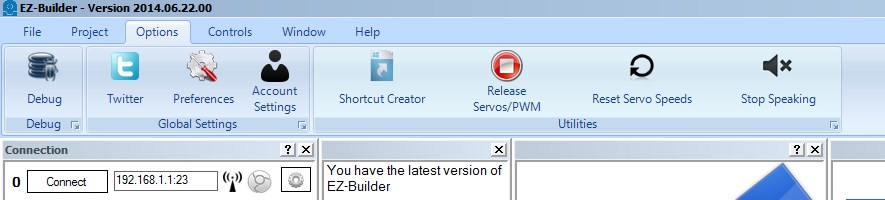
Yes on the top bar of ARC Click Options / then you will see a red stop button. This stops servos and pwm.
Or you can add the control to your desktop....You know where you add a servo control like vertical or horizontal servos?.... servo Auto Release control is there too.... you can use it to release all servos in your project....
For ease of use, I've just uploaded an example emergency stop script. Download it, open your project, click merge, select this project and choose to import the "Emergency Stop" script.
Adjust the script to suit any serial or I2C commands required also, or drone landing/emergency commands if applicable.
Emergency Stop.ezb
You could also add it to a script if needed:
ReleaseAll ( [boardIndex] ) Release all servos from holding their position BoardIndex is optional, and specified the EZ-B board to use Example: ReleaseAll()
You all certainly deserve a point. But, I gave it to HippieGeek because he/she was first.
so it was under the Options menu and I am running on a mimo 7" monitor. So, it did not even show up.
Thank You, very much!
@Rich, I just discovered that YOU wrote a script for me. Thank you so much!
Life was not the same Before Rich (BR).
Sincerely, Mel