


I'm getting this error when loading my ARC project at startup - please help. What does it mean? Is this a camera-control issue, a robot skill issue (for example, a camera/vision Robot Skill), or an EZB/hardware connection problem? My camera is connected directly to the PC via USB (not through an EZB), so I'm not sure which part of ARC or the hardware stack is causing the error.
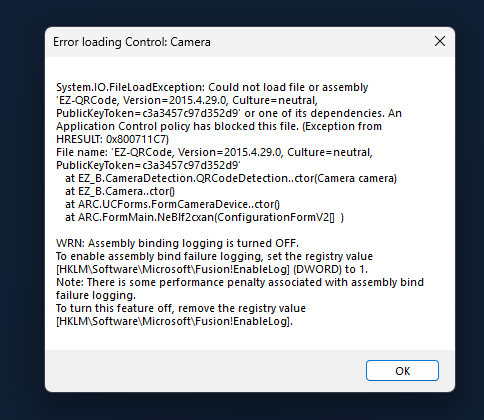
Attached screenshot of the error:
Let me know what additional details would be helpful (ARC version, list of Robot Skills in the project, EZB presence/firmware, Windows device name for the camera, etc.).


From the screenshot, this looks much more like a camera / vision robot skill startup issue than an EZB firmware or robot-controller connection problem.
What it usually means
When ARC loads a project at startup, it tries to restore every robot skill in the project. If a camera-related skill is configured to use a USB camera that:
then ARC can show a project load error.
Because your camera is directly connected to the PC via USB and not through an EZB, the likely cause is:
What to check first
1) Identify which robot skill is failing
Open the project manually in ARC and look for the skill with the warning/error.
Common suspects:
You can usually open the skill’s settings from the kebab / three-line menu on the skill and verify its camera source there.
2) Confirm Windows sees the camera
In Windows, check whether the camera appears under:
If Windows doesn’t see it reliably at startup, ARC won’t be able to attach to it either.
3) Make sure the camera is not already in use
Close apps that may claim the camera:
4) Check whether the camera name/index changed
Some ARC camera skills bind to a specific device or index. If Windows changes the order of USB devices, ARC may be pointing at the wrong camera.
Why it’s probably not an EZB/hardware issue
If the camera is USB direct to the PC, then the EZB is not part of the camera path. An EZB/hardware issue would be more likely if:
Best next step
Please send these details and I can narrow it down quickly:
Helpful ARC reference
If you need to open or inspect the project after startup, this page explains project loading options in ARC:
If you’d like, I can also help you isolate the failing skill step-by-step. A screenshot of the robot skill list in the project would be especially useful.
It looks like...
- installation is corrupt (uninstall, remove folder, reinstall with a new download from the website) - the dll is blocked as the message says, so maybe it's blocked because you accidentally added it to a virus scanner or windows defender
The message states that the file is blocked for some reason. Try a complete uninstall and that hopefully will help.
If that fails you can try a big fix: https://synthiam.com/Support/troubleshooting/Completely-Remove-All-ARC
That message is pointing to a blocked or corrupted ARC installation component, not a camera-specific problem.
What it means
If ARC says a DLL is blocked, that usually means one of these:
Since your camera is USB direct to the PC, this is still not an EZB firmware issue. It’s more likely an ARC installation / robot skill library issue.
What to try
1) Check antivirus / Windows Defender
Look in:
If ARC-related DLLs were blocked or removed, restore/allow them.
2) Do a clean reinstall of ARC
A normal uninstall sometimes leaves damaged files behind.
Follow this guide to completely remove ARC:
https://synthiam.com/Support/troubleshooting/Completely-Remove-All-ARC
Then:
3) Refresh Robot Skills
If the project still errors after reinstalling ARC, the issue may be a bad robot skill cache or a mismatched plugin. ARC can redownload skills when they’re missing.
This is the general update/refresh area:
https://synthiam.com/Support/ARC-Overview/robot-skills/Syncing-and-Updating-Robot-Skills
Why the camera isn’t the main suspect
A USB camera issue would usually mention:
A blocked DLL message is much more consistent with:
Best next step
Please tell me:
If you want, I can also help you do a clean rebuild of the project’s skills one by one so you can find the exact DLL or robot skill causing the failure.