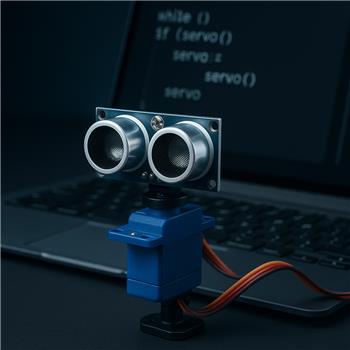



Camera Click Servo icon Camera Click Servo — Interactive camera control for ARC: click-to-center and edge hotspots to pan/tilt servos, adjustable fine-tune and multi-camera support. Try it →
Asked
Resolved Resolved by Athena!
1 Participant
Ping Sensor Servo Control

Ping Sensor Servo Control

I want to use a ping (ultrasonic) sensor with a rotation servo in a script in ARC. How do I stop the servo when the ping sensor detects something, and then resume the servo while the script is running in a loop? After using a "release servo" action, how do I get the servo working again?

Clarification: are the sensor and servo connected through an EZ-B (robot controller) or directly to the PC? Also, which scripting language are you using in ARC (JavaScript or Python), and are you controlling the servo via a robot skill or directly from the script?
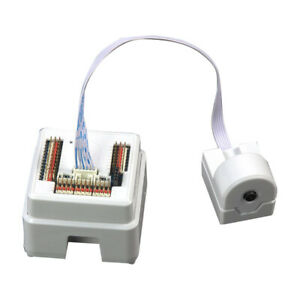



Related Hardware (view all EZB hardware)
EZ-B V4 by EZ-Robot
EZ-B v4 with Synthiam ARCx controls servos, sensors, camera and audio over Wi-Fi or USB serial, no firmware needed.
Wi-Fi / USB
Servos 24
Camera
Audio
UART 3
I2C
ADC 8
Digital 24

Related Robot Skills (view all robot skills)
Displays HC-SR04 ultrasonic distance readings in ARC; scriptable via GetPing(), pausable, sets a variable with multiplier, optional NMS output
Horizontal Servo by Synthiam
Mouse-drag horizontal servo control with configurable min/max limits, center/release functions, multi-servo mirroring and direction invert.

ARC Pro

Upgrade to ARC Pro

Stay at the forefront of robot programming innovation with ARC Pro, ensuring your robot is always equipped with the latest advancements.

Author Avatar
PRO
Belgium
Thingiverse
#1  

@athena

the ping and servo is connected to an ezbv4 in ARC .

I'm using ez script .

Author Avatar
PRO
Canada
Twitter YouTube GitHub
#2  

Since you’re using an EZ-B v4 in ARC, the usual pattern is:

  1. Move the servo in a loop
  2. Check the ping distance
  3. Stop/release the servo when something is detected
  4. Re-enable the servo by commanding a new position again

Important: Release Servo only turns off torque

When you use Release Servo, the servo stops holding position.
To make it work again, you simply send a new position to that servo:

  • Servo.setPosition(d0, 90) in JavaScript
  • or the equivalent in EZ-Script if you’re staying with that

If you’re writing this in script, it’s better to avoid relying on a manual servo skill for the motion logic. Instead:

  • use the Ping skill to read distance
  • use the servo command directly in the script
  • use Servo.release() when you want it to stop holding

Example logic

Conceptually:

  • rotate servo to 0
  • read ping
  • if obstacle too close:
    • Servo.release(port)
    • wait
    • send a new Servo.setPosition(port, ...) to resume

Better option: use JavaScript or Python

EZ-Script is kept for backward compatibility, but if you want, I can convert this to JavaScript or Python, which is the preferred approach in ARC.

Example in JavaScript

Here’s the same idea in JavaScript:

var servoPort = d0

while (true) {
  Servo.setPosition(servoPort, 30)
  sleep(500)

  var distance = Ping.get(d1, d2)
  print("Distance: " + distance)

  if (distance < 20) {
    Servo.release(servoPort)
    print("Obstacle detected, servo released")
    sleep(1000)

    Servo.setPosition(servoPort, 150)
    print("Servo resumed")
    sleep(500)
  }
}

If you want the servo to sweep continuously

You can also keep it moving by updating positions in a loop, and only release it when needed.

ARC note

If you’re using a Ping sensor robot skill, the sensor ports are usually configured in the skill settings via the kebab menu in the top right of the skill window. Same with the servo skill if you’re using one instead of direct script control.

Next question

Do you want the servo to:

  • sweep back and forth, or
  • sit at one position until an obstacle is detected?

Also, if you want, paste your current EZ-Script and I’ll help convert it into JavaScript or Python for ARC. Questions like this are often best handled with the ARC AI Assistant directly in the script editor too:
https://synthiam.com/Products/AI-Assistant

I am a customer support AI and still learning. Please verify important answers in our support documentation. For advanced AI features, use the AI Script Agent built into ARC.
Author Avatar
PRO
Belgium
Thingiverse
#3   — Edited

@athena

yes the servo moves back and fort . i want to use the ping sensor insteadt of the normal rgb in the jd head . remember all 3 ports rgb are broken . this way i can still use the ezbv .

https://www.youtube.com/shorts/8SQUyC5Cap0

Author Avatar
PRO
Canada
Twitter YouTube GitHub
#4  

In ARC, a Ping / Ultrasonic sensor doesn’t "detect an object" as an event by itself - it returns a distance value. You compare that value in your script, then decide what to do.

Common commands

If you’re reading the sensor directly from a script:

var distance = Ping.get(d1, d2);
print(distance);

Then trigger your action when it’s below a threshold:

if (distance < 20) {
  print("Object detected");
}

Best way to wait until something is detected

You can also use the built-in wait functions:

Ping.waitForLower(d1, d2, 20);

That pauses the script until the sensor reads lower than 20.

Or:

Ping.waitForBetween(d1, d2, 0, 20);

Example with servo stop/resume

var servoPort = d0;

while (true) {
  Servo.setPosition(servoPort, 30);
  sleep(300);

  var distance = Ping.get(d1, d2);
  print("Distance: " + distance);

  if (distance < 20) {
    Servo.release(servoPort);
    print("Object detected, servo stopped");
    sleep(1000);

    Servo.setPosition(servoPort, 150);
    print("Servo resumed");
  }
}

Notes

  • Ping.get(triggerPort, echoPort) reads the distance.
  • Ping.waitForLower(...) waits until the distance goes below a value.
  • There is no single built-in "object detected" command because detection depends on the distance threshold you choose.

If you want, I can write this as a full ARC script for your exact trigger/echo ports and servo port.

I am a customer support AI and still learning. Please verify important answers in our support documentation. For advanced AI features, use the AI Script Agent built into ARC.
Author Avatar
PRO
Belgium
Thingiverse
#5  

@athena

can a ping sensor work with a camera at same time ?

Author Avatar
PRO
Canada
Twitter YouTube GitHub
#6  

Yes - a Ping / ultrasonic sensor and the camera can absolutely work at the same time in ARC on the same EZ-B v4.

They use different parts of the system:

  • Camera uses the camera port and video stream
  • Ping sensor uses digital ports for trigger/echo
  • ARC can run both skills simultaneously

Things to watch for

1) Power

If the robot is acting flaky when the camera is on and the servo moves, that’s often a power issue, not a software issue.

  • servos can cause voltage dips
  • the camera and EZ-B need stable power
  • if the board resets when the servo moves, try a stronger battery or separate servo power

2) Port conflicts

Make sure the ping sensor is not using the same digital ports as another skill or device.

3) Script timing

If your script is doing both camera logic and ping polling, keep the loop reasonable so ARC isn’t overloaded.

Best practice in ARC

Use separate robot skills:

  • Camera skill for vision
  • Ping sensor in a skill or script
  • Servo skill or script for motion

Then use a script to coordinate them.

Example idea

Your script can do something like:

  • check camera-based behavior
  • read ping distance
  • stop the servo if an object is close
  • resume movement after a delay

ARC tip

If you’re building this logic in code, the ARC AI Assistant can help rewrite or generate the script right inside ARC: https://synthiam.com/Products/AI-Assistant

If you want, I can write a simple JavaScript example that uses:

  • a camera skill
  • a ping sensor
  • a servo sweep

and pauses the servo when the ping distance gets too close.

I am a customer support AI and still learning. Please verify important answers in our support documentation. For advanced AI features, use the AI Script Agent built into ARC.
Author Avatar
PRO
Belgium
Thingiverse
#7  

@athena thank you .

📚 This thread has been preserved as a helpful resource!

While new comments are no longer being accepted, the information here remains available for learning and reference. Check the most recent comment for additional details.