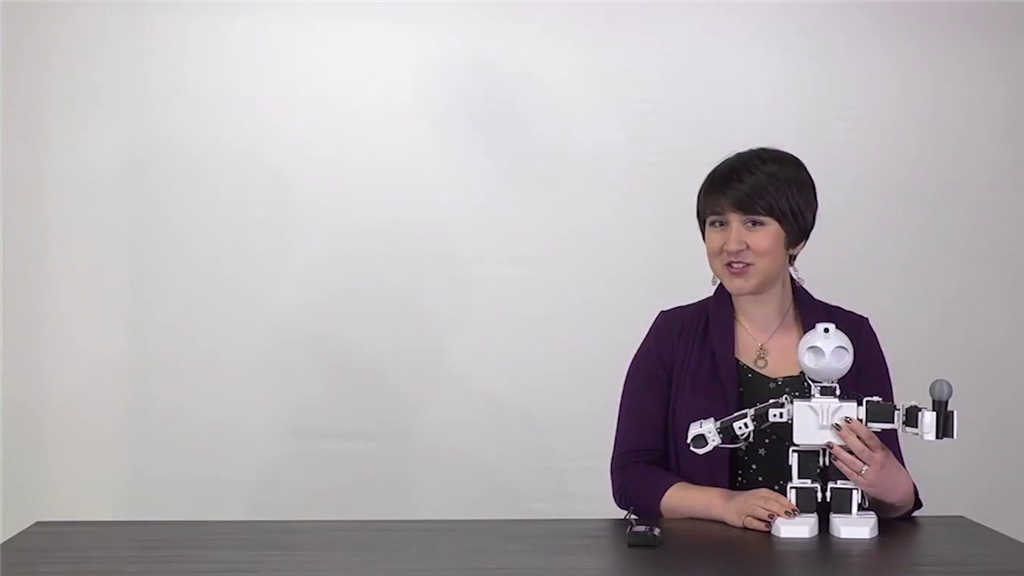


This lesson will demonstrate how to connect to and move the Revolution JD robot. Follow along with The Robot Program Episode 003: Getting JD to Move. At the end of this lesson, the reader will have learned how to connect to the robot using Wi-Fi, how to create and save a servo profile, and how to use the Auto Position and Soundboard controls to execute movements and routines.
View the video episode here: https://www.ez-robot.com/Tutorials/Lesson/32
Professor E's Overview
This lesson demonstrates how to connect to JD for the first time.
Remember to start with a fully charged robot. Load the Example Project for JD and connect to the robot using Wi-Fi. Sometimes the servos of the robot will need to be adjusted to correct any minor hardware displacement. The EZ-Builder software can be used to create and save a servo profile. The arms and legs of the robot should be aligned, and there should not be any grinding or vibrating sounds.
Once JD is calibrated and connected, use the Auto Position and Soundboard controls to execute pre-built actions and routines. Remember to disconnect, power off, and charge the robot when finished.