

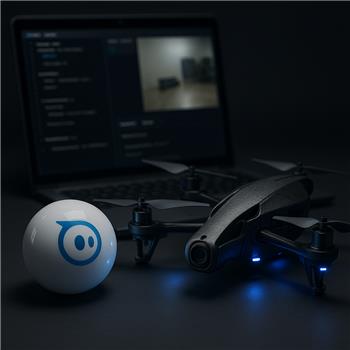
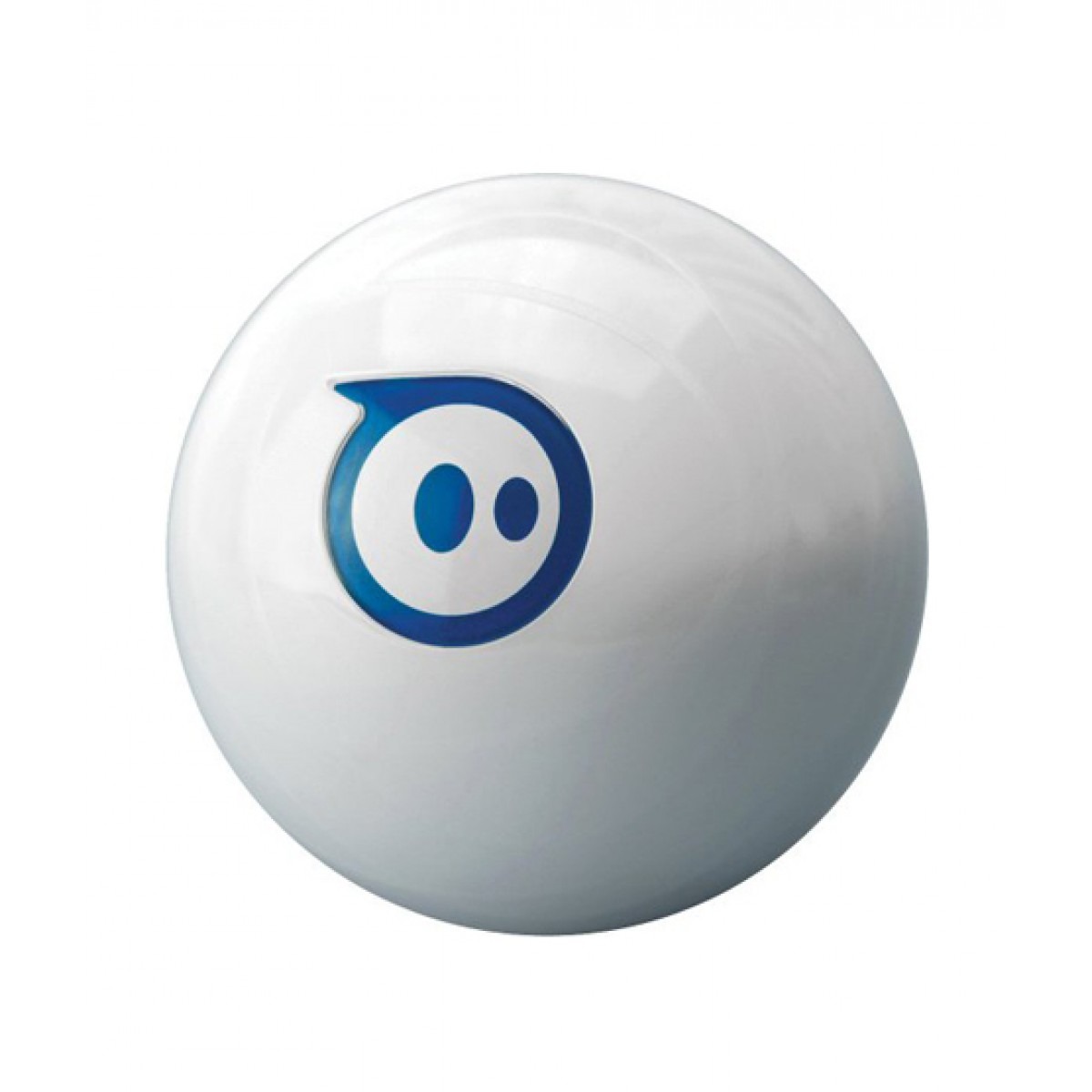
Running ARC on Windows with a Sphero (Bluetooth) and a Parrot AR.Drone 2.0 (WiFi). Sphero connects fine and the Sphero Movement Panel drives it reliably. I’m trying to use the AR.Drone only as a video source on a stand while Sphero does the driving based on vision. I added the Camera Device skill to view the drone feed. If I only add Camera Device and connect my PC to the AR.Drone’s WiFi, I can’t get video (tried various network URLs), but if I add the AR Parrot Drone Movement Panel and hit Connect, the Camera Device shows the live feed immediately. The problem is as soon as AR Parrot Drone Movement is in the project, ARC enforces the single Movement Panel rule and my Sphero Movement Panel is disabled/ignored-joystick and scripts target the AR.Drone instead of Sphero. For example, this no longer moves Sphero when the drone panel exists:
Movement.Forward()
Sleep(1000)
Movement.Stop()
I tried disconnecting the AR.Drone (ControlCommand to Disconnect/Stop) and even removing joystick mapping from it, but Movement.* still routes to the drone panel when it’s present. I’d like Sphero to remain the active movement device while I use the AR.Drone camera feed. Do I actually need the AR Parrot Drone Movement skill to get the video, and if not, what Camera Device settings/URL should I use, or is there a supported way to programmatically swap/disable movement panels at runtime so Movement.* calls go to the Sphero Movement Panel?


Yes - the behavior you’re seeing is expected in ARC:
Movement.Forward()starts targeting the drone instead of SpheroWhat to do instead
Option 1: Use the drone only as a camera source, but don’t rely on the drone Movement Panel for your robot movement
If your goal is:
then the cleanest solution is to use a camera source that does not require the drone movement panel.
In ARC, the Camera Device skill can accept:
See the Camera Device manual here:
Why the drone feed appears only after adding the AR Parrot Drone movement panel
The AR.Drone video feed is being exposed through that Movement Panel skill. So without it, ARC has no direct access to the drone’s video stream.
That means:
Supported workaround idea
If the AR.Drone can expose a direct MJPEG/JPEG snapshot URL, you could potentially use:
This is the right path if the drone publishes a direct image URL.
In the Camera Device settings:
More on camera setup:
About programmatically swapping movement panels
ARC does not support multiple active movement panels at once, and there isn’t a supported way to make
Movement.*dynamically switch between them at runtime the way you’re hoping.So if the AR.Drone Movement Panel is in the project,
Movement.*will generally target that active movement panel.Best practical path
For your use case, I’d recommend one of these:
A. Best overall
Use a separate camera source for vision and keep:
B. If you must use the drone camera
Use the AR.Drone feed only if you can connect Camera Device directly to a valid stream URL, so the AR.Drone Movement Panel is not needed.
A couple of questions so I can point you to the right setup
If you want, I can help you figure out the correct AR.Drone video URL to try with Camera Device, or help you structure the project so Sphero remains the movement robot while another camera feeds vision.