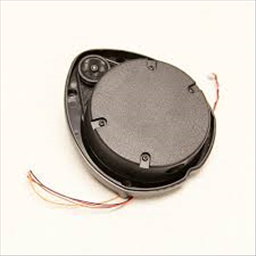


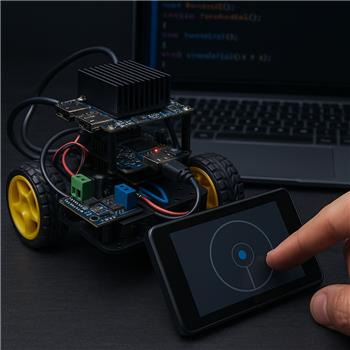
Running ARC on a Rock Pi X mounted in a small 2WD rover. The Rock Pi X connects over USB to an Arduino Nano that drives a Cytron dual motor driver (PWM+DIR for each motor). In ARC I’m using a Custom Movement Panel with JavaScript to send serial commands like "Lxxx Rxxx\n" to the Nano, and I added the Movement Joystick skill to get analog steering on a touchscreen. Expected: pushing the stick halfway should map to lower PWM; Actual: regardless of how far I move the joystick, the robot goes at the fixed speed defined in my Custom Movement Panel’s scripts, so it looks like only Forward/Reverse/Left/Right are being triggered without any speed magnitude.
I tried lowering the Movement Joystick Max Speed and tweaking the Dead Zone, but it still runs at my hardcoded values. I opened the Variable Watcher while moving the joystick and don’t see anything updating that looks like X/Y. I also tried grabbing possible vars in JS (e.g., getVar("$MovementJoystickX")/getVar("$MovementJoystickY")) and testing ControlCommand calls to the Movement Joystick, but didn’t find anything documented. I even added a SetSpeed-style function in the Custom Movement Panel in case it’s called automatically, but it never fired.
Here’s the simplified bit of what my Custom Movement Panel is doing now:
function forward() { sendSerial("L200 R200\n"); }
function left()    { sendSerial("L100 R200\n"); }
function stop()    { sendSerial("L0 R0\n"); }
What is the correct way to get analog X/Y values from the Movement Joystick into a Custom Movement Panel (or otherwise achieve variable speed with my USB-serial Arduino motor driver)?


What you’re seeing is expected behavior in ARC:
forward(),reverse(),left(),right(),stop()- but not joystick position valuesSo the key point is:
Why your speed stays fixed
Your scripts are hardcoded:
That means ARC is correctly calling the direction event, but the script itself always sends the same PWM values regardless of joystick position.
Correct ways to achieve variable speed
Option 1: Use the movement speed values inside your custom movement panel
ARC exposes movement speed values for movement panels, and those are what you should read inside your custom movement scripts.
In JavaScript, use:
Those values come from the current movement system, including the joystick if the joystick is configured to control the movement panel.
Example custom Movement Panel script
Important setup check
Make sure your Movement Joystick is actually controlling the project’s Movement Panel:
If it isn’t bound properly, the joystick may move its own internal control without affecting the movement speed values you’re reading.
About X/Y values
ARC does not expose joystick X/Y as simple global variables like:
$MovementJoystickX$MovementJoystickYSo your test with
getVar()wouldn’t find anything because that’s not how this skill publishes its values.Best approach for your rover
For a 2WD rover, the cleanest pattern is usually:
Movement.getSpeedLeft()andMovement.getSpeedRight()That gives you proper analog speed without needing raw joystick X/Y.
One thing to keep in mind
If your Cytron driver expects signed direction + PWM, you may want to translate the movement speed into left/right motor power and direction yourself rather than sending fixed text commands.
For example:
That depends on the command format your Arduino Nano is parsing.
Helpful references
Movement Panels overview:
https://synthiam.com/Support/ARC-Overview/movement-panels
Custom Movement Panel skill:
https://synthiam.com/Support/Skills/Movement-Panels/Custom-Movement-Panel?id=16077
Movement Joystick skill:
https://synthiam.com/Support/Skills/Remote-Control/Movement-Joystick?id=19388
If you want, I can help you rewrite your custom Movement Panel script
If you paste:
I can write the full JavaScript custom Movement Panel scripts for:
That’s the cleanest way to make the joystick truly analog in ARC.