


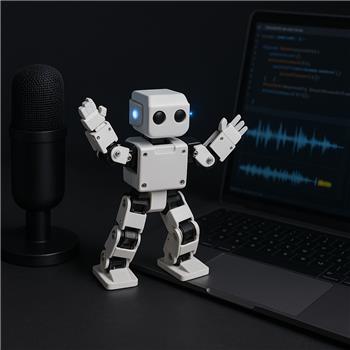
Working on a ROBOTIS Darwin Mini (OpenCM9.04 flashed with the ARC firmware from the Synthiam hardware page), connected to ARC over USB for now. Servos (XL-320s) move fine using Auto Position frames, so the control link seems solid. I’m trying to add a simple audio interaction: clap once to make the Mini do a "cheer" pose, and also capture a 2-second snippet of the clap/voice and play it back through my PC speakers. I added the Microphone skill and the waveform/levels look good. Manually pressing "Record" then "Export to Sound Board (EZB)" works-the clip shows up in my Sound Board (EZB) and I can play it. But I’m stuck automating it from a script and reliably detecting the clap.
Questions/issues I’m hitting:
- I can’t find a reliable variable or event to detect a short, sharp clap; the Auto Record threshold triggers too often on ambient noise with my laptop mic. Is there a way to read a current mic RMS/peak value or get a boolean "above threshold" variable that I can debounce in JavaScript?
- What are the exact ControlCommand strings for the Microphone skill to 1) start/stop a timed recording and 2) export the latest buffer to a specific Sound Board (EZB) control? I tried guesses like:
ControlCommand("Microphone", "RecordFor", 2000);
Sleep(2200);
ControlCommand("Microphone", "ExportToSoundBoard", "Sound Board (EZB)");
ControlCommand("Sound Board (EZB)", "Track_0");
but nothing updates on the Sound Board unless I click Export manually. Also, any tips for clap detection filtering (e.g., simple moving average) in ARC JavaScript so my Darwin Mini only fires the Auto Position frame on a real clap?
What is the correct way in ARC to read a clap-like peak from the Microphone skill and then programmatically export/play the latest recording via Sound Board (EZB) while triggering an Auto Position on a Darwin Mini connected over USB?


Yes - you can build this in ARC, but there are a couple of important limitations to know first:
What ARC can and can’t do with the Microphone skill
The Microphone skill is primarily a recording tool, not a live waveform analysis API. So:
That means the most reliable path is usually:
If you want a reusable solution inside ARC, the best long-term approach would be creating a custom robot skill: https://synthiam.com/Support/Create-Robot-Skill/Overview
About the Microphone skill commands
The exact
ControlCommand()strings for the Microphone skill are not always obvious from the UI, and they depend on that skill’s documented commands. Since the public documentation doesn’t list a timed-record/export command set in the same way some other skills do, the safest way is:If a command isn’t listed there, ARC won’t accept guessed names like
"RecordFor"or"ExportToSoundBoard".Important note about your Sound Board test
You mentioned:
That means the connection is fine.
But the export button is a UI action inside the Microphone skill, and many skills don’t expose every UI action as a
ControlCommand(). So the issue is probably not your syntax - it’s likely that the Microphone skill doesn’t currently expose that export action throughControlCommand().Best practical architecture for your goal
For your use case on the Darwin Mini:
Example flow
How to make clap detection more reliable
Because the built-in mic skill doesn’t expose raw live audio levels, you’ll need a workaround. Common options:
Option A: Use speech recognition / audio trigger style detection
If your clap is consistent and loud, you may be able to detect it with a short audio trigger window.
Option B: Use a custom script skill or robot skill
This is the cleanest solution if you want:
Option C: Use a Python/JavaScript loop with a separate audio source
If you have access to audio input via a scriptable source, you can:
Debounce idea in JavaScript
If you can get any kind of live amplitude value, a simple clap detector would look like this:
That said, this only works if you have a real level reading source.
Triggering the Darwin Mini cheer pose
If your Auto Position action is named
Cheer, then the ControlCommand would typically be:If your control is renamed, use that exact title instead.
What I recommend you do next
For your specific setup
Since you’re on a Darwin Mini over USB and your motion side is already working, I’d focus on two separate pieces:
If you want, I can help you with either of these next:
If you can share a screenshot of the Microphone skill settings/menu and the Cheat Sheet for that control, I can help identify the exact command names.