

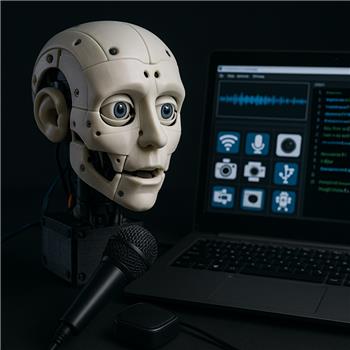
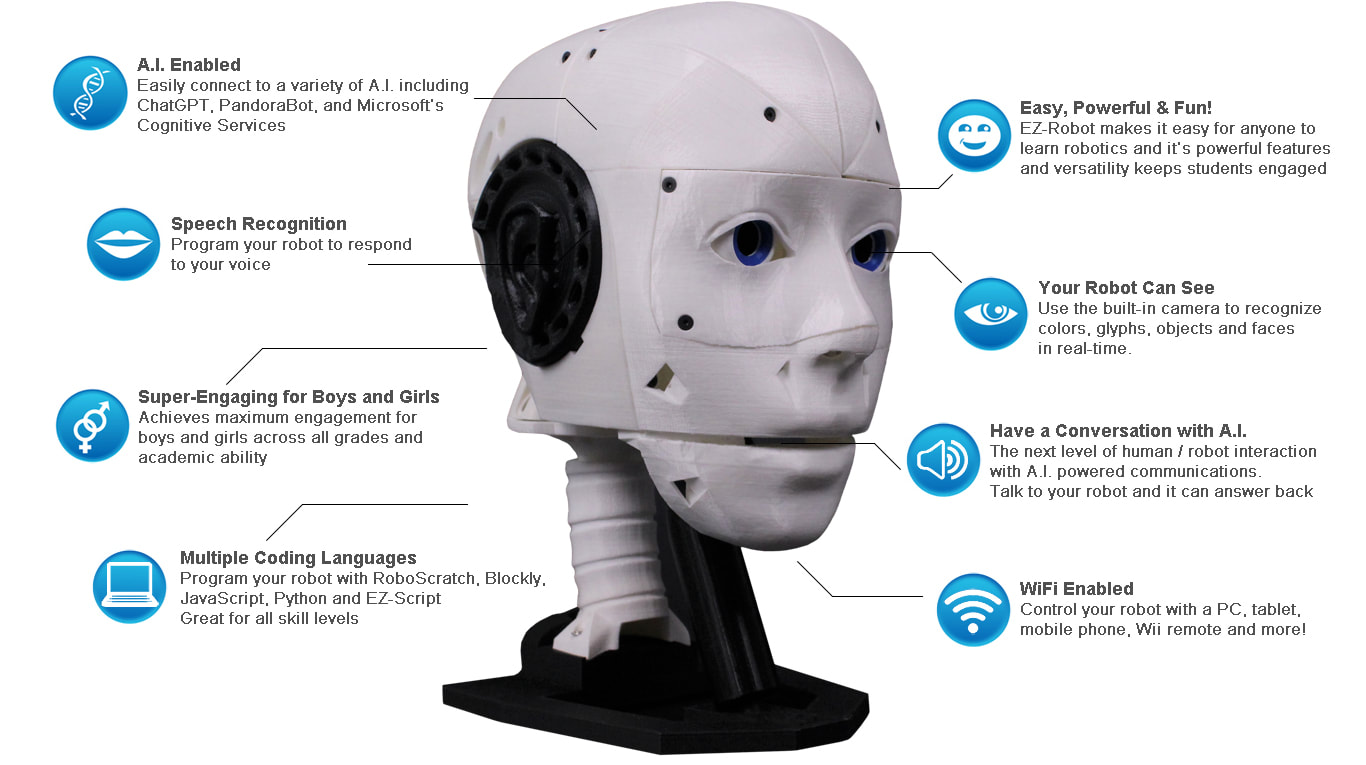
I’ve got an EZ-InMoov Robot Head running on an EZ-Robot IoTiny over WiFi. Servos are on D0-D5 (eyes pan/tilt, neck, jaw), EZ-Robot camera streams to ARC on my Windows laptop, and there’s a small USB speaker mounted inside the skull that’s plugged into the PC. I’m trying to do a simple "parrot" mode: capture a few seconds of speech with the Microphone skill and immediately play it back out of the head’s speaker.
The Microphone skill shows the waveform fine and auto-record triggers as expected. Pressing Play in the Microphone window doesn’t produce any audio. I now realize the Microphone description mentions playback through the EZ-B v4 onboard speaker, and since I’m on an IoTiny (no onboard audio), that might be why there’s silence. I tried exporting to Sound Board (EZB) and then triggering a track, but ARC’s console warns there’s no EZ-B audio device. I then added SoundBoard (PC), but I don’t see any option in Microphone to export the buffer there.
I also tried a quick script to test the flow, but still no audio because it’s targeting the EZB sound path:
ControlCommand("Microphone", "RecordStart")
Sleep(3000)
ControlCommand("Microphone", "RecordStop")
ControlCommand("Sound Board (EZB)", "PlayTrack_0")
Is there a supported way to route the Microphone skill’s recorded buffer to Windows audio (e.g., SoundBoard (PC) or Play Audio File) on an IoTiny-based build, or a ControlCommand to save the last recording to a WAV/MP3 that I can then play from the PC speaker inside the head?


Yes - your diagnosis is correct.
The Microphone robot skill is designed to play back through an EZ-B with audio output, so on an IoTiny project it won’t directly route playback to the PC speaker. That’s why the recording waveform looks fine but playback is silent.
The supported approach in ARC
For an IoTiny-based head, the proven path is:
Audio.playAudioFile()Important limitation
There is not a built-in ControlCommand that I’d recommend for directly routing the Microphone buffer to Soundboard (PC). The Microphone skill is not intended as a universal audio router.
Recommended workflow
Option 1: Microphone export to Soundboard play on PC
This is the normal ARC workflow when you want PC audio.
If the export button isn’t visible or doesn’t seem to do anything, that usually means the recording is still being held in the Microphone buffer and hasn’t been copied into the PC Soundboard tracklist yet.
Option 2: Save a recording as a file, then play it
If your goal is to capture speech and immediately replay it, the best ARC-friendly way is usually to do it with a script + file playback pattern rather than relying on the Microphone skill buffer.
For example, use the Microphone skill for capture, then play a known audio file from the PC speaker:
That path plays through the computer’s default audio device, which is exactly what you want for the USB speaker mounted in the head.
What I’d recommend for your "parrot mode"
Because you want a very specific behavior, the cleanest solution is:
That avoids depending on EZ-B audio hardware that the IoTiny doesn’t have.
One thing to verify
Since your USB speaker is plugged into the Windows laptop, make sure Windows has that USB device set as the default playback device.
Audio.playAudioFile()and Soundboard (PC) will use the PC’s default output.A practical ARC setup
A reliable setup would be:
That is much more stable than trying to bounce live microphone buffer audio directly into an EZ-B sound path.
Useful references
Best next step
What do you want the robot to do overall in parrot mode:
If you want, I can help you build the best ARC script/skill layout for this exact IoTiny head setup.