

Satyajit_R

EZ-B Settings Targets Wrong Board
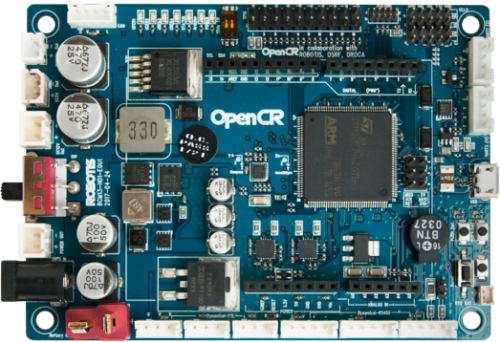
I’ve got an OpenCR 1.0 (Robotis) flashed with DJ’s OpenCR v1 firmware and connected to ARC over USB at 921,600 baud on COM5. That side is solid-servos respond and scripting works. I’m also trying to use the EZ-B Settings robot skill to push SSID/password updates to an EZ-B v4 that my students use, so I don’t have to use the web config every time. In ARC I added two connections: Board 0 = OpenCR (COM5), Board 1 = EZ-B v4 (client mode, reachable by IP). When I open EZ-B Settings, enter the SSID/password, and hit Send Configuration, the EZ-B v4 doesn’t change anything. Instead, I sometimes see the OpenCR momentarily disconnect, and the Debug window shows messages like "Command not supported by board" (looks like the skill is talking to the OpenCR). If I swap the connections so the EZ-B v4 is Board 0 and the OpenCR is Board 1, the Send button works: the EZ-B v4 reboots and takes the new WiFi settings as expected. I don’t see a Board Index option in the EZ-B Settings skill to target the EZ-B v4 when OpenCR is connected as Board 0. I tried disconnecting the OpenCR before pressing Send, and it works-but that’s clunky in a classroom flow. Is there a way to point the EZ-B Settings skill at Board 1 (the EZ-B v4) while keeping OpenCR as Board 0, or is temporarily reordering/disconnecting the only supported workflow?
Related Hardware (view all EZB hardware)
Related Robot Skill (view all robot skills)


Yes - what you’re seeing is expected behavior with EZ-B Settings.
That skill is designed to talk to the default EZ-B connection in ARC, which is typically Board 0. It does not currently expose a board index selector in the skill UI, so when OpenCR is Board 0, the skill will try to send the configuration there - which explains the "Command not supported by board" messages and the momentary disconnect.
What’s happening
Supported workflow
The supported options are basically:
Make the EZ-B v4 Board 0 temporarily
Disconnect OpenCR while sending
Practical recommendation
If you need to update many EZ-B v4s in a classroom environment, the least disruptive workflow is usually:
If you often need both boards online at the same time, then temporarily reordering Board 0/1 is the only practical path with the current skill behavior.
Why there’s no Board Index option
Some skills are built to operate against the project’s primary controller rather than letting you select a target board. In those cases, the skill follows ARC’s default board context. If you ever need a more board-specific workflow, that’s the kind of thing you could build as a custom robot skill in ARC: https://synthiam.com/Support/Create-Robot-Skill/Overview
Helpful links
Bottom line
No, there isn’t a Board 1 target option in the EZ-B Settings skill.
So temporarily reordering the boards or disconnecting OpenCR is the supported workaround.
If you want, I can also help you set up a repeatable classroom workflow in ARC so your OpenCR stays first for scripting, but you only swap boards briefly when it’s time to push WiFi settings.