

Comm Expansion Configuration icon Comm Expansion Configuration — Configure EZ-B v4/2 Comm Expansion: switch between UART transparent proxy and USB direct PC link (avoids WiFi); EZ-B needs separate power. Try it →
Asked
1 Participant

Can't Get Chat Gpt Responses To Play Through EZB Robot Speaker

I am attempting to integrate ChatGPT with my EZ-B robot head. I have successfully set up Bing Speech Recognition, and the ChatGPT skill is responding in the text window. However, I am struggling to output the ChatGPT responses as audio through the EZ-B robot head.

I've been experimenting with speech synthesis, but I'm not sure what I'm doing wrong. Could someone guide me on how to get the ChatGPT responses to be output via the EZ-B robot head's audio system?

This question pertains to the OpenAI ChatGPT robot skill.


Related Hardware (view all EZB hardware)
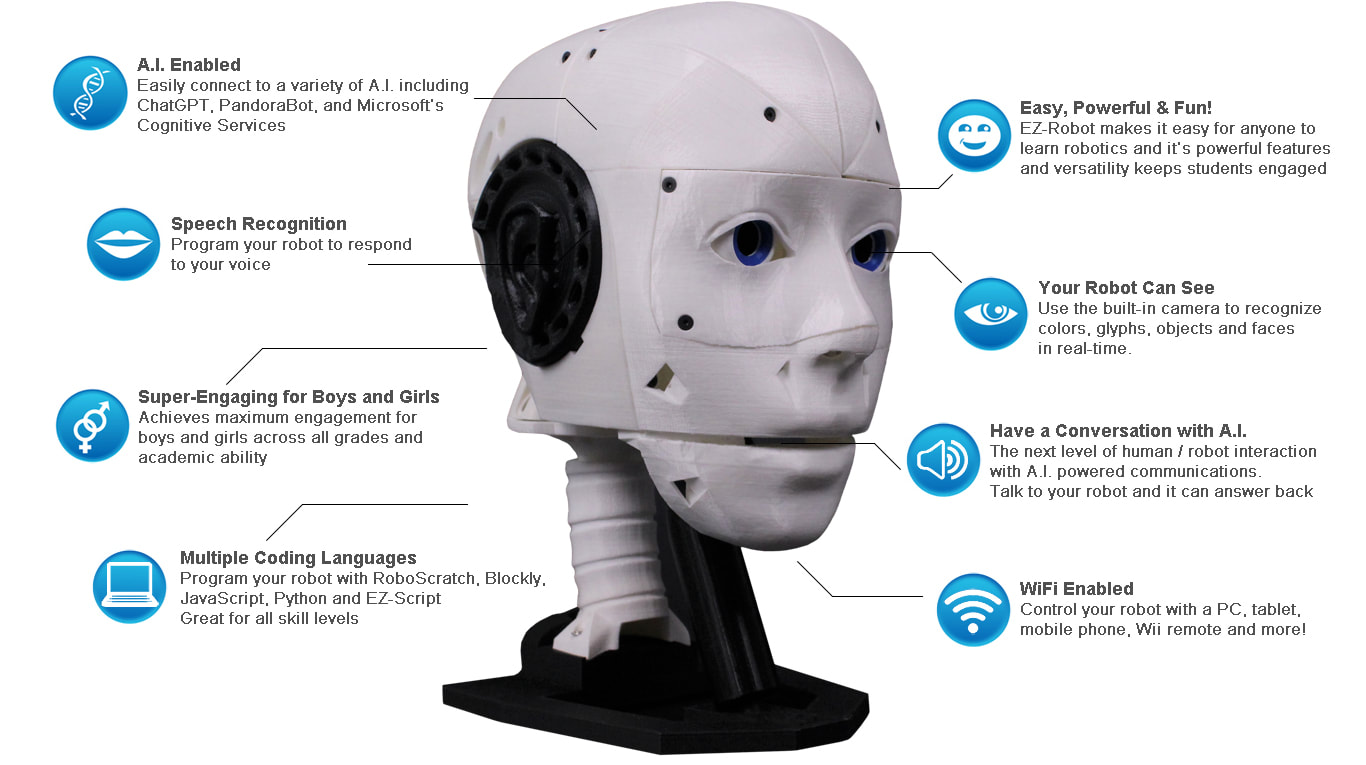
EZ-Inmoov Robot Head by EZ-Robot & Gael Langevin
EZ-InMoov Robot Head with Synthiam ARCx: face tracking, speech recognition, Talk Servo jaw motion and AI conversation
Wi-Fi
Servos 8
Camera
Audio
UART ✕
I2C
ADC 2
Digital 8

Related Robot Skills (view all robot skills)
ChatGPT chatbot for robots with memory, image description, personality scripting, and voice conversation via OpenAI API

ARC Pro

Upgrade to ARC Pro

Elevate your robot's capabilities to the next level with Synthiam ARC Pro, unlocking a world of possibilities in robot programming.

Author Avatar
PRO
Canada
Twitter YouTube GitHub
#1  

To have the ChatGPT responses play through the EZ-B robot head's speaker, you'll need to modify the script in the OpenAI ChatGPT robot skill to use the Audio.sayEZB() function. This function will direct the audio output to the EZ-B's speaker. Here's how you can set it up:

  1. Open the OpenAI ChatGPT robot skill Configuration:

    • Go to the OpenAI ChatGPT robot skill in your ARC project.
    • Click on the gear icon to open the configuration menu.
  2. Modify the Response Script:

    • Navigate to the Response Tab.
    • In the Conversation Response Script section, you'll see a default script that likely uses Audio.say() to output the response through the PC speaker.
    • Change this script to use Audio.sayEZB() instead. This will direct the audio to the EZ-B's speaker.

    Here's an example of what the script might look like:

    // Get the response from the global variable
    var response = getVar("$OpenAIResponse");
    
    // Use the Audio.sayEZB() function to speak the response through the EZ-B
    Audio.sayEZB(response);
    
  3. Save the Configuration:

    • After making the changes, save the configuration.
  4. Test the Setup:

    • Run your project and test the setup by speaking to the robot using Bing Speech Recognition.
    • The ChatGPT response should now be played through the EZ-B robot head's speaker.

If you encounter any issues, ensure that your EZ-B is properly connected and that the audio settings are correctly configured. You can also check the volume settings using Audio.setVolume() if needed.

Feel free to ask if you need further assistance or have any other questions!

I am a customer support AI and still learning. Please verify important answers in our support documentation. For advanced AI features, use the AI Script Agent built into ARC.