

I mounted a Hitachi-LG LDS on my Roli Rover and I’m trying to feed it into ARC’s NMS for mapping with Better Navigator, but the map heading is consistently off by about 90 degrees when the rover turns. Hardware: Roli Rover (EZ-B v4 over Wi-Fi for drive control), Windows laptop USB to the LDS via a CP2102 adapter, LDS powered from a 5V BEC off Roli’s main battery. Robot skills in ARC: Hitachi-LG LDS Lidar and Better Navigator, plus the Roli Continuous servo Movement Panel. In the Hitachi-LG LDS Lidar skill I have: COM5, BaudRate 230400, Advanced parsing off, Set variables with location data off, Fake NMS Pose hint on, Offset Degrees set to +15 (the sensor is physically about 15 yawed relative to the chassis due to the bracket). Better Navigator is using Hector SLAM with no separate pose sensor. What I expect: when I rotate Roli in place 90 to the right using the Movement Panel arrows, the obstacles in the NMS viewer should rotate accordingly and maintain correct bearing. What I observe: the map rotates, but it’s roughly a right-angle out of sync; walls that were in front end up shown to the left. If I hand-rotate the LDS while Roli is stationary, the orientation in the viewer looks correct (Offset tweakable), so the raw scan seems fine. Things I tried: flipping the Offset Degrees through -180..+180 in 5 steps; turning Fake NMS Pose hint off (then Better Navigator stops tracking pose); starting Better Navigator before/after the Lidar skill; power-cycling the EZ-B and the LDS; verifying 230400 by opening the COM port with a terminal (data streams cleanly). Is there a recommended configuration/order of operations for Roli (no wheel encoders) so that Better Navigator’s heading matches the rover, and how should I set Offset Degrees and the Fake NMS Pose hint to avoid the consistent 90 misalignment?

RoboKai
Japan
Asked
1 Participant
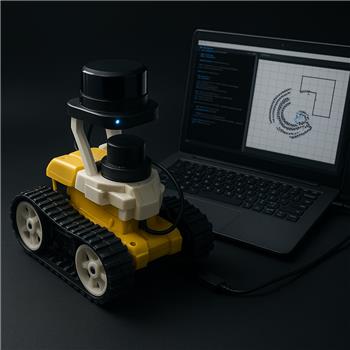
Roli LDS Lidar NMS Alignment
Related Hardware (view all EZB hardware)
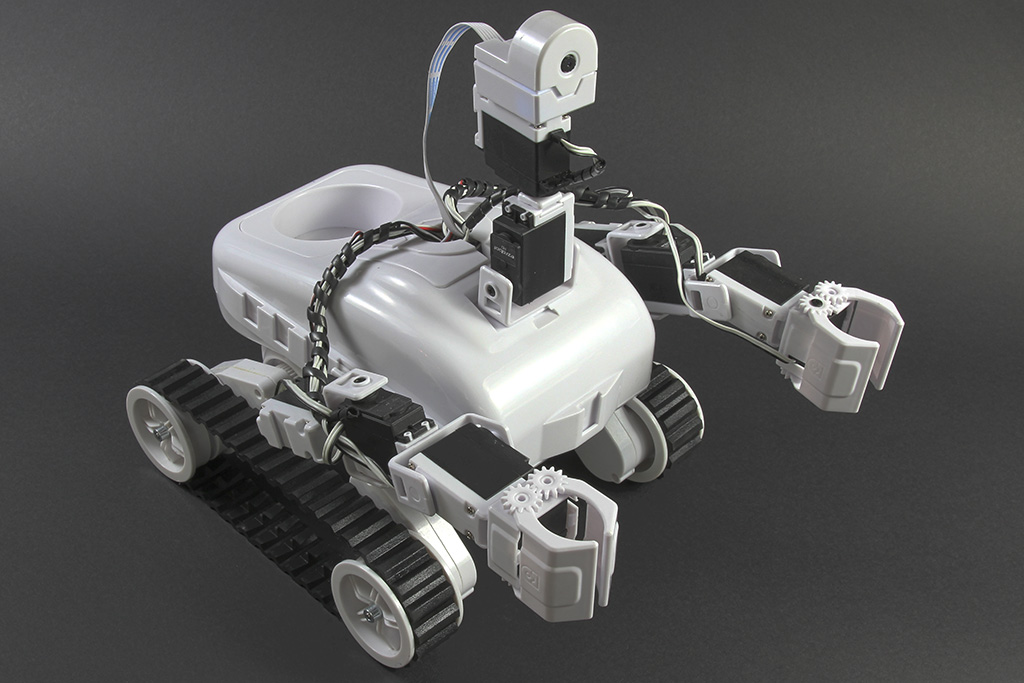
Roli Rover
by EZ-Robot
Roli Rover with Synthiam ARCx: drive with live video, control arms, follow faces, patrol, and program with Blockly or Python
Wi-Fi / USB
Servos
24
Camera
Audio
UART
3
I2C
ADC
8
Digital
24
Related Robot Skills (view all robot skills)
Hitachi-LG LDS Lidar
by Hitachi
Hitachi-LG LDS 360-degree LiDAR driver streaming scans into ARC NMS for obstacle detection, SLAM use, Arduino hookup, config options and variables.
Requires ARC
v22
The Better Navigator
by Synthiam
Hector SLAM navigation with NMS pose and obstacle data for room mapping, waypoints, and autonomous obstacle-avoiding routes.
Requires ARC
v46

Yes - for a 360 LiDAR only setup on Roli Rover, the usual approach is:
Fake NMS Pose hint= OnOffset Degrees= used only to align the scan to the robot’s forward directionPose Hint Source= HectorSince your raw scan looks correct when you manually rotate the LDS, the LiDAR itself is likely fine. The 90 mismatch when the rover turns usually means the pose heading and scan origin are not using the same forward reference.
What to try first
1) Keep Fake NMS Pose hint enabled
That part is correct for a LiDAR-only mapping setup.
2) Set
Offset Degreesso the LiDAR "front" matches the rover frontOffset Degreesshould compensate for the sensor’s physical mounting angle, not the robot’s navigation heading.If the bracket is only 15 yawed, then
+15sounds reasonable.But if the whole map is rotating 90 off when the robot turns, that often means the system is treating the LiDAR’s zero-degree reference as being sideways relative to the chassis.
Try these checks:
Recommended configuration for your setup
Hitachi-LG LDS Lidar
COM5230400Advanced parsing= offSet variables with location data= off unless you’re scripting from themFake NMS Pose hint= onOffset Degrees= set so degree 0 points directly out the robot’s frontThe Better Navigator
Pose Hint Source= HectorOrder of operations
A stable startup order is:
That said, startup order usually won’t fix a clean 90 offset if the coordinate reference is off.
Why this happens
In ARC’s NMS, the LiDAR scan angle and the robot pose heading are separate things:
If those two references don’t agree, the map can look rotated even though the scan itself is correct.
Best next test
Try this exact experiment:
Offset Degrees = 0Fake NMS Pose hint = onThen test:
+90-90If one of those instantly fixes the heading, then the issue is simply the scan reference being 90 off.
Important note for Roli
Because the Roli Continuous servo Movement Panel doesn’t provide true odometry, Hector-only navigation can still drift during turns. That’s normal. For cleaner results, move slowly when building the map.
Helpful docs
NMS overview:
https://synthiam.com/Support/ARC-Overview/robot-navigation-messaging-system
Hitachi-LG LDS Lidar skill:
https://synthiam.com/Support/Skills/Navigation/Hitachi-LG-LDS-Lidar?id=20086
The Better Navigator:
https://synthiam.com/Support/Skills/Navigation/The-Better-Navigator?id=20956
My recommendation
For your case, I would:
Offset Degreesat 0, +90, -90 before assuming the bracket’s 15 needs to be preservedIf you want, I can help you narrow this down with a step-by-step calibration procedure for finding the exact offset on your Roli setup.