


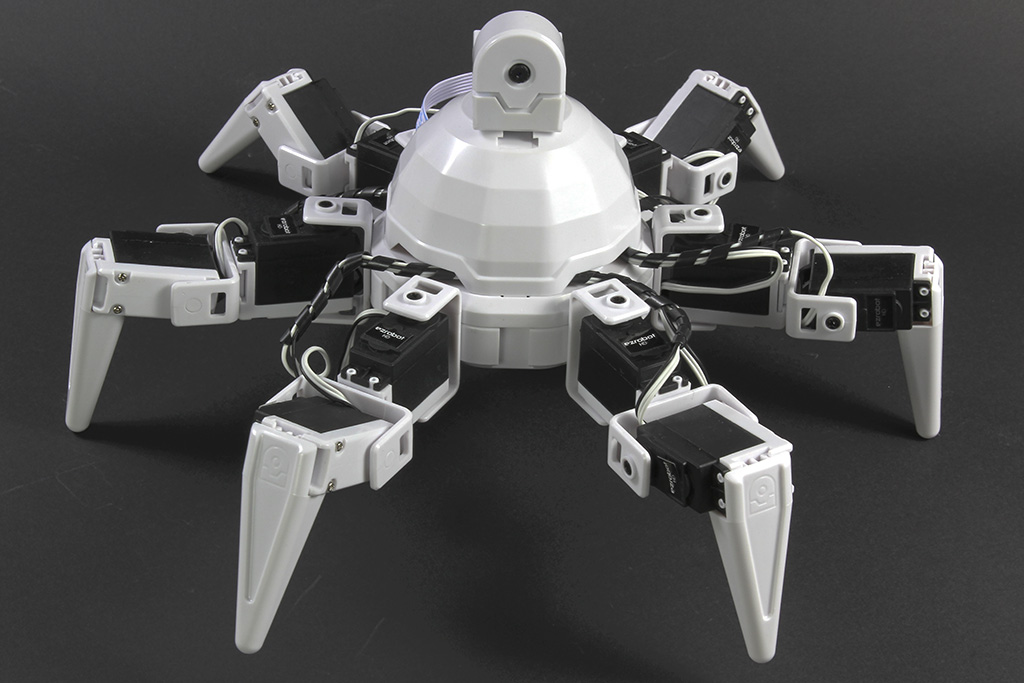
I’m using a Six Hexapod (EZ-Robot) connected over WiFi to ARC on a Windows laptop, and trying to drive the PC cursor with the Remote Mouse skill from a Script skill using camera tracking. The Camera Device is set to 320x240, tracking a green ball, and I’m reading $CameraObjectX / $CameraObjectY, mapping them to screen coordinates, then calling SetAbsolute. On a single display it’s close enough, but on my desk setup (laptop 1920x1080 @100% on the left as secondary, external 2560x1440 @125% on the right as primary) the cursor jumps to the wrong place or off by a big offset. The Remote Mouse pointer display shows values larger than a single screen width (e.g., ~3900 on the far right), so I think SetAbsolute uses the Windows virtual desktop. Here’s the simplified bit I’m using:
# camera 320x240 mapped to primary display size
$mx = Round(($CameraObjectX / 320) * 2560)
$my = Round(($CameraObjectY / 240) * 1440)
ControlCommand("Remote Mouse", SetAbsolute, $mx, $my)
Things I’ve tried: hard-coded offsets for the left/secondary monitor; flipping which display is primary; changing DPI scaling; using relative MoveRight/MoveDown instead of SetAbsolute (drifts over time); smoothing with a rolling average to tame jitter; and WindowMaximize/WindowMove tests to confirm the ARC window position. My suspicion is I need the virtual desktop origin and the target monitor’s bounds to compute the correct absolute values, especially when the secondary is to the left (negative X region) and with DPI scaling. Is there a recommended way in ARC to get virtual desktop dimensions/offsets or force Remote Mouse SetAbsolute to a specific monitor so this mapping is accurate across multi-monitor and DPI setups?



Yes - your suspicion is right:
Remote Mouseuses the Windows virtual desktop coordinates, not the bounds of a single monitor. That’s whySetAbsoluteis landing in the wrong spot when you have:The important part
Your current math assumes:
320x2402560x1440But
SetAbsoluteis not targeting "the primary monitor." It’s targeting the entire desktop space, which may be something like:-1920 to 00 to 2560So if you map directly to
0..2560, the cursor will be offset whenever the actual virtual desktop origin isn’t0,0.Recommended approach in ARC
There isn’t a built-in ARC command that directly returns Windows virtual desktop bounds/monitor rectangles from the
Remote Mouseskill itself.Best practice
Use JavaScript or Python in the Script skill and compute your own mapping based on the monitor you want to control, then send the coordinates to
Remote Mouse.If you only want to control one specific monitor, the cleanest solution is:
SetAbsoluteExample: map camera to the right monitor only
If your external 2560x1440 display is the one on the right, and its top-left virtual desktop origin is
(0, 0), then:If the target monitor is on the left and begins at
-1920, then:DPI scaling note
Windows DPI scaling can make this look "wrong" even when the math is correct.
A few practical tips:
That said, the
Remote Mouseskill itself still works with desktop coordinates - the main thing is that you must map into the correct virtual desktop coordinate system.Important correction to your current formula
This:
is only valid if:
(0,0)It does not account for:
Better way to do this in ARC
If you want this to be robust, I’d recommend:
XYSetAbsoluteExample with clamping:
What I’d like to know
What is your end goal here?
Are you trying to:
If you want, I can help you build the correct JavaScript version for your exact monitor layout, including left-of-primary and DPI scaling behavior. Questions like this are often best handled with the ARC AI Assistant inside the Script editor too, since it can rewrite the mapping logic right in ARC:
https://synthiam.com/Products/AI-Assistant