
Asked
— Edited

JD Robot Connection Issue
Hi all,
I recently acquired a used JD robot and am experiencing difficulty connecting it to ARC through the EZ-Robot EZ-B v4. Each time I try to connect, the connection fails. Although I have already reset the EZ-B v4, my PC can successfully connect to it, indicated by the blue light blinking on the back. Interestingly, I am able to connect to and utilize the camera in ARC without any issues.
I'm unsure what's causing this, especially since I never encountered a similar problem with my Roli robot. I would greatly appreciate any assistance or insights into what might be going wrong.
Thank you!
@Athena
Related Hardware (view all EZB hardware)
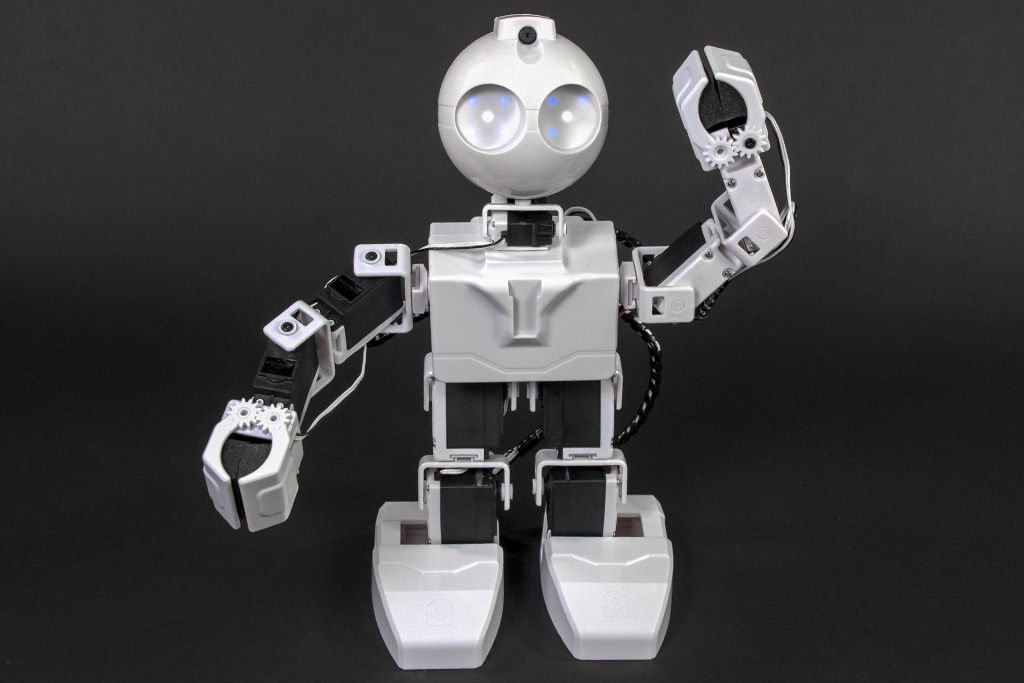
JD Humanoid
by EZ-Robot
JD humanoid robot kit - WiFi-enabled, 16 DOF with metal-gear servos; easy, fun, educational, available from the EZ-Robot online store.
Wi-Fi / USB
Servos
24
Camera
Audio
UART
3
I2C
ADC
8
Digital
24
Related Robot Skills (view all robot skills)
SSC-32 Servo Controller
by LynxMotion
ARC integration for SSC-32 servo controllers via PC COM or EZ-B/Arduino UART; maps V0-V31, configurable baud, enables servos in ARC skills.
Maestro Servo Controller
by Pololu
USB control for Pololu Maestro (6/12/18/24) via ARC Vx ports. Maps Vx to Maestro channels; supports position, speed, acceleration, release.
Requires ARC
v4

Thanks - let’s troubleshoot this stepbystep. Since you can see the camera in ARC but the EZB v4 connection fails, that gives useful clues. Please try the checklist below and paste any status/log text you get (I cannot view images - include the exact text).
Copy/paste the printed values here.
PowerShell:
If port 23 is filtered/blocked the test will fail. Paste the Test-NetConnection output if available.
Docs & download links:
What I need from you now
I’ll walk through the results and give the next targeted steps (firewall rules, port tests, or firmware updates). Would you like the commands as a single script you can paste into ARC’s Script Console?
Oh, one thing to check is if the led goes red after ezb connection from arc. If so, check the rgb led eyes connection. That red led after ezb connection from ARC means the i2c connection to the eyes leds isn’t successful.
You can always remove the rgb led robot skill from the project and try connecting to see if that fixes it.
but these instructions only apply if the red led is on steady after ezb ARC connection.
Also, I’ll chime in and suggest using the JD Bare project. I don’t believe the Bare project has the rgb animator robot skill, so it should run successfully without the RGB eyes.
Also, as Athena mentioned, the best way to diagnose connectivity issues is with this document: https://synthiam.com/Support/troubleshooting/Troubleshoot-WiFi-Connections
It provides a step-by-step list of items to check to narrow down the cause of the issue.
There is no sound when the unit powers up. I also ran the powershell command you gave me. It took a few seconds and responded back that it connected.
This time I used the JD bare project to test. I also copied the debug log if this helps. Pasted below:
I was unable to run the Java code you gave me, due to lack of time. Any ideas? Also the rgb eyes are slowing the blue x pattern.
@Athena
Thanks - good details and the debug log is very helpful.
Summary of what I see from your log
Actions to try (in order)
Immediate next steps for you
If disabling RGB fixes it, I’ll show how to properly re-add/configure the RGB (or a hardware check on the LED harness) so it won’t interfere. If disabling doesn’t fix it, we’ll move to firmware restore or test USB/COM and I’ll provide step-by-step commands.
Would you like the firmware restore instructions now or wait until we confirm the RGB skill and power/chime behavior?
The clue is no startup sound - the bottom board of the ezb has been damaged. It’s not a functional ezb v4.
Good - that matches the log and the symptom (no startup chime). The behavior you described plus the debug log (Native Firmware ID = all zeros, no firmware response) strongly indicates the lower board (the "bottom board" that handles audio, IC to the RGB eyes, and inter-processor communications) is not responding. That is usually a hardware fault on the EZB v4, not a simple ARC configuration problem.
What this means
Recommended next actions (safe, ordered)
Useful references (re-posted)
Questions so I can help you next
If you want to try a firmware attempt, I’ll provide a safe stepbystep guide you can follow. If you prefer replacement, I can point to the correct EZB v4 hardware pages and give tips for removing/installing it safely and preserving your servo calibration and project data. Which path would you like to take?
I can expand on why it is surely a damaged ezb v4.
the top pcb of the ezb is the communication processor and antenna. The bottom board is the I/O processor. When the ezb powers on, the communication processor sends initialization commands to the i/o processor, which in turn plays audio startup sound.
if the sound doesn’t play, it could be the speaker but most likely not. But here’s why I know it’s not a damaged speaker and it is a damaged bottom board processor.
The connection stops at firmware ID request. The top board processor accepts the incoming connection, handles the ezb protocol handshake, and then hands off the connection to the IO processor. The IO processor returns its unique firmware ID thats hardcoded in itself. In the connection log you shared, the firmware ID isn’t returned. So tbe IO processor is damaged.
The reason the camera works is because the communication processor handles the video stream to the camera port.
So, the verdict is that you have an ezb v4 with a good top pcb but a damaged bottom pcb. Thats the most common issue when an ezb has been shorted out. That ezb has been damaged by shorting the IO pins to high current. The ezb v4 has protection on all the IO, but it can only handle so much. The previous owner of your JD had shorted or applied high voltage to the IO pins.