



@Athena,
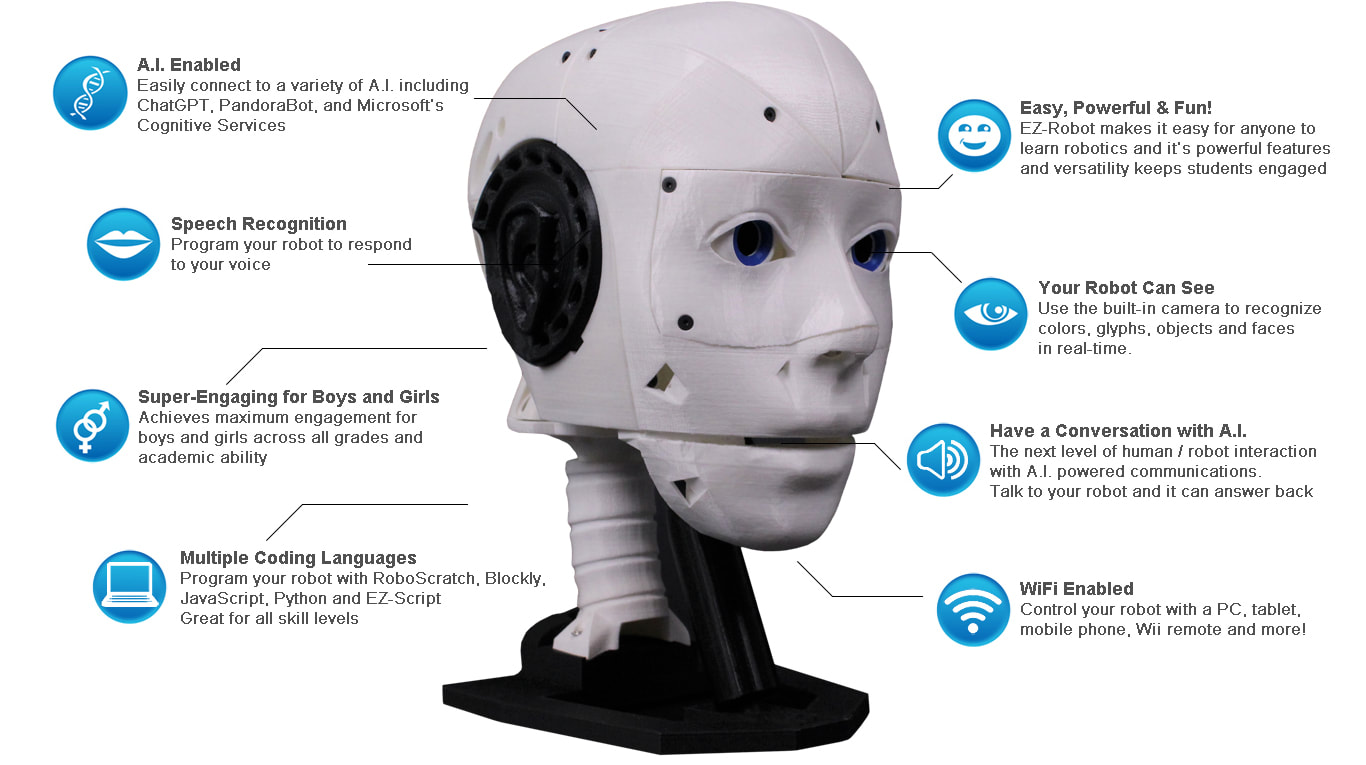
I'm working on a full EZ-InMoov (torso and head). The configuration uses an IoTiny for the head and an EZ-B v4 for the torso. The IoTiny connects to the EZ-B, and ARC connects to that EZ-B, so I have both controllers in my ARC project as Connection 0 and Connection 1.
When I power on the robot, the IoTiny reports: "I am unable to connect to your network." In this case the "network" would be the EZ-B. I'm not sure what might have changed so that it no longer auto-connects. Is it possible the EZ-B network configuration was changed or that the EZ-B was reset?
Can you describe the steps needed to check the IoTiny and determine why it's not auto-connecting? For clarity: I'm running both controllers in one ARC project, with the IoTiny and the EZ-B v4 appearing as separate connections.


Yes - this can happen if the IoTiny’s Wi-Fi/client settings were changed, if it was reset, or if the target network/robot IP changed. Since your head and torso are separate controllers in one ARC project, the key is to verify the IoTiny’s network mode and saved connection settings first, then confirm ARC’s connection order.
What the message usually means
When the IoTiny says:
it generally means the IoTiny is trying to join a Wi-Fi network/client connection and cannot reach the saved network target. That can happen if:
Best way to diagnose it
1) Check whether the IoTiny is broadcasting its own Wi-Fi
Power the IoTiny on and look for:
If it is not broadcasting its own AP, it may be trying to act as a client and failing to join your network.
2) Open the IoTiny’s built-in web page
If you can connect to the IoTiny’s Wi-Fi AP, open its configuration page and verify:
If you cannot reach the page, that strongly suggests the IoTiny is not on the expected network anymore.
3) Check ARC’s connection order
In a project with multiple EZ-Bs, I recommend:
If the IoTiny depends on the v4 or vice versa, the order matters less for network transport, but it matters for scripts/skills that expect a controller at a certain index.
4) Verify ARC connection settings for both controllers
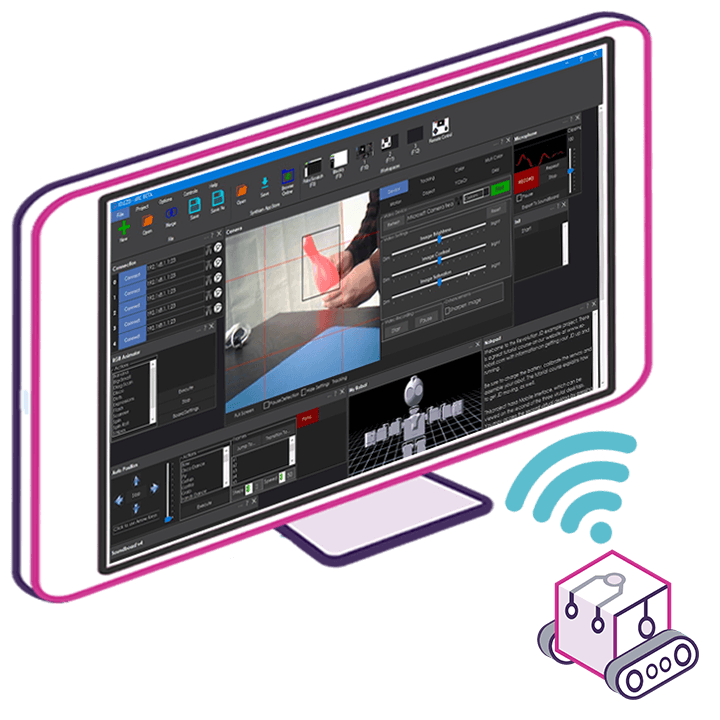
In Project > Connection:
Use the kebab/menu on the robot skill to inspect its settings if needed.
5) Check for network conflicts
This is a very common issue with Wi-Fi EZ-B devices.
If your home/router network uses the same range as the robot network, connection problems can happen. The Wi-Fi troubleshooting guide explains the common conflict patterns and antivirus/firewall issues:
https://synthiam.com/Support/troubleshooting/Troubleshoot-WiFi-Connections
Also check the general connection troubleshooting page:
https://synthiam.com/Support/troubleshooting/Connection-Troubleshooting
6) Power-cycle and test one controller at a time
To isolate the issue:
That tells you whether the failure is:
Things that may have changed
If it used to work and stopped, the most likely causes are:
Recommended recovery steps
If you can get access to the IoTiny AP:
If you cannot access the IoTiny configuration page, the next step is to verify whether it is still in AP mode or if it has been configured to join another network entirely.
ARC note for your project
For a full EZ-InMoov build, the proven approach is to keep the head and torso controllers clearly separated in ARC and make sure each skill is explicitly tied to the correct connection index. That avoids mixed control and makes troubleshooting much easier.
A good reference for the hardware is here:
https://synthiam.com/Support/Hardware/EZ-InMoov-Robot-Head
A few questions so I can narrow this down
If you want, I can give you a step-by-step recovery checklist for the IoTiny specifically, including how to verify its network mode and re-establish the connection in ARC.