Asked — Edited

Integrating DIY Mars Rover Components

Hello, Athena!

I am in the process of building a Mars rover prototype, which features six DC motors and six servos, much like the design of NASA's Perseverance rover. Each wheel of the rover is equipped with a servo for directional steering control. I'm thinking of using an IO Tiny combined with a PCA9685 servo driver to manage the servos. For the camera system, I am considering an ESP32-CAM WiFi module to handle video streaming.

Can you please advise if this configuration will integrate effectively with the Synthiam mobile app for both control of the rover's movements and video streaming from the camera system? Thank you!


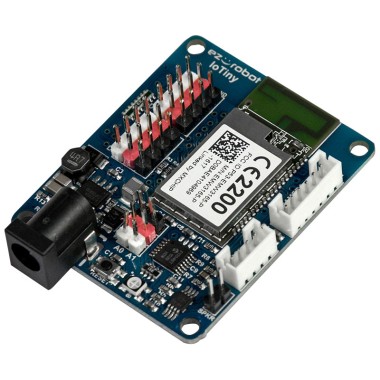
Related Hardware EZ-B IoTiny

ARC Pro

Upgrade to ARC Pro

Unleash your robot's full potential with the cutting-edge features and intuitive programming offered by Synthiam ARC Pro.

Author Avatar
PRO
Synthiam
#1  

use a continuous rotation Movement Panel for movement. you can connect all servos to the two pins. they left servos can share an io pin, and so with the right for signal. you don't need an external servo driver. all the wheels move at the same time

the ezb iotiny has a camera port, that does not take i/o. camera has it's own port.

you can add a gimbel x/y for the camera with 2 additional servos. if you're remote controlling this with the mobile app, you can add a servo pad joystick widget to the interface designer and you can control the servos.

Author Avatar
PRO
Canada
#2  

Short answer: Yes - the high-level design will work, but you need the right motor/drivers and wiring choices. Below I summarize the recommended architecture, the gotchas (power, signals, port limits), stepbystep ARC/Stream setup for the ESP32CAM, and options for movement control and mobile control. I’ll finish with a small JavaScript example you can use once servos are mapped to virtual ports.

Please answer my follow-ups at the end so I can give exact wiring and script examples.


  • EZB IoTiny - main ARC connection & logic.
  • PCA9685 (IC servo driver) - handle the 6 steering servos (recommended). Use a PCA9685 robot skill if available, or write a small skill/script that drives it over IC.
  • Motor driver(s) / Hbridges - drive the six DC motors. Options:
    • Group left-side motors together and right-side motors together (differential drive) and drive each side via an Hbridge (so ARC Movement Panels can control the robot as Left/Right). This is simplest.
    • Use individual motor drivers for each DC motor and write a custom Movement Panel / skill to coordinate them for more advanced suspension/independent steering.
  • ESP32CAM - video streaming. Use its HTTP/MJPEG or RTSP stream and feed that into ARC’s Stream All The Video Sources skill (the skill supports rtsp/http/http- mjpeg, rtmp, etc.).
  • Common ground and proper power supply(s) - PCA9685 V+ does NOT supply large servo current; use a separate beefy 5-6V power supply for servos and suitable supply for DC motors (and common ground to IoTiny).

Useful links:


Important considerations / gotchas

  1. Ports & servo count on IoTiny

    • IoTiny has a limited number of physical servo/digital ports (D0-D7). Six steering servos will exceed the IoTiny native ports, so PCA9685 is the right move.
  2. PCA9685 power

    • PCA9685 only provides PWM control. It does not provide a heavy current source. Power servos from a dedicated 5-6V battery or BEC rated for the sum current of all steering servos. Connect common ground with the IoTiny.
  3. DC motors & motor drivers

    • DC motors require an Hbridge (e.g., TB6612, L298, or larger motor controllers). Choose a controller able to handle stall currents for all wheels.
    • If you wire all left motors in parallel and all right motors in parallel and drive each side with a single Hbridge channel, you can use the Movement Panel concept (two channels: left/right). This matches DJ_Sures advice - but that only applies if you want all left wheels to behave identically.
    • If you want independent wheel speed or complex steering (e.g., Ackermann or skid steering with independent wheel control), you’ll need a custom movement skill or microcontroller to coordinate the motors.
  4. Sharing signal lines

    • You can tie multiple continuous servos to the same PWM signal if they are identical and you want them to do the same thing (e.g., all left wheels). But every servo must get its own power feed (do not try to power many servos from IoTiny). Also verify they all accept the same neutral/stop PWM value.
  5. IoTiny camera port is dedicated

    • IoTiny has a camera port but that’s for EZRobot camera modules. It does not accept general I/O. The ESP32CAM will stream over WiFi and be integrated into ARC with the Stream All The Video Sources skill (not via the camera port).
  6. Bandwidth & latency

    • ESP32CAM streaming to mobile app over WiFi will consume bandwidth. For field testing, ensure a good WiFi network or use the mobile device and IoTiny on same local network.

How to integrate ESP32CAM into ARC (Stream All The Video Sources)

  1. Make sure ESP32CAM is running a stream server (common options):

    • MJPEG / HTTP stream (often at something like http://<ip>/stream)
    • RTSP (some firmwares/third-party builds add RTSP)
    • rtmp (less common on ESP32 stock)

    If you need RTSP or better streaming, consider ESP32 RTSP firmware variants.

  2. In ARC:

    • Add a Camera Device skill (Project Add robot skill Camera Device).
    • In Camera Device settings, select Custom as the video source and choose a target camera device name. Start the Camera Device (press START on that camera device skill).
    • Add the Stream All The Video Sources skill (Project Add robot skill Stream All The Video Sources).
    • Open Stream All The Video Sources settings (use the kebab menu - the three lines - for the skill).
    • Select the Camera Device from the dropdown (the device the stream will be sent to).
    • Paste your ESP32CAM stream URL into the Stream All The Video Sources URL field (e.g., http://192.168.1.50:81/stream or rtsp://192.168.1.50:8554/stream).
    • Press START on the Stream All The Video Sources skill.
    • The Camera Device should display the stream and that camera can now be used by other ARC skills (tracking, video recording, mobile streaming).

If your ESP32CAM stream type is not compatible, change its firmware or use a gateway (e.g., an application that converts the stream to an ARC-supported format).


Movement control options (simple advanced)

  1. Simple differential drive (recommended for faster integration)

    • Combine the three left DC motors wired in parallel and three right motors in parallel (ensure motor controller can handle current).
    • Use one Hbridge channel per side. That gives two movement channels (Left/Right).
    • Add ARC Movement Panel that matches Hbridge/differential drive (or Continuous servo Movement Panel if using continuous servos).
    • Use ARC Movement commands (Movement.forward(), Movement.left(), Movement.setSpeed(), etc.) - many controls (joystick, camera tracking) will send commands to the project Movement Panel automatically.
  2. Drive with continuous rotation servos (if using CR servos as motors)

    • You could use six continuous rotation servos for drive. If you want them to move together, tie left side servos to a single signal and right side servos to a single signal - but that requires you have servo signals for left & right. Because IoTiny has limited signals, use servo driver or group them physically.
    • This approach may be less torque-efficient than dedicated DC motors + gearbox.
  3. Independent steering + drive

    • If each wheel has both its own drive motor and a steering servo, that’s effectively a 12-axis system. You’ll need a controller/skill that coordinates wheel steering/drive (complex geometry). This will likely require a custom movement panel/skill to interpret joystick or autonomous commands and translate to each motor/servo.

Mobile control setup (Mobile app / Interface Designer)

  • For remote controlling via the Synthiam mobile app:
    • Use Interface Designer to add widgets: Joystick Pad or servo Pad / Joystick widget.
    • For steering servos controlled via the PCA9685 skill, you can map servo pad widgets to the virtual servo ports (v0-v99). If you don't have a skill exposing virtual servo ports, create one (Create robot skill guide).
    • For driving, if the Movement Panel is set up (Hbridge), the Joystick will drive the Movement Panel without extra scripting.
    • For camera streaming, the Camera Device in ARC will surface the camera feed to the app.

Steps to add servo pad joystick:

  1. Open Interface Designer (Project Interface Builder).
  2. Add a servo Pad / Joystick widget.
  3. Configure it to control the servo IDs exposed by your PCA9685 skill (via kebab menu settings).
  4. Save and test in mobile app.

Power & wiring checklist (do these before testing)

  • Use a proper power supply for:
    • DC motors (battery pack rated to motor voltage and current).
    • Steering servos (5-6V BEC capable of total servo current).
    • IoTiny power (if using same battery, ensure voltage is within IoTiny allowable range; IoTiny I/O may output whatever Vin is - be careful).
  • Always connect grounds together (IoTiny, PCA9685 power GND, motor controller GND).
  • Ensure PCA9685 V+ is the servo supply and the logic Vcc to PCA9685 matches IoTiny IC logic (3.3V safe).
  • If powering motors from a higher voltage, use motor drivers with proper voltage/logic separation.

Example JavaScript snippets

  1. Simple example: set a virtual servo position (when your PCA9685 skill maps servos to virtual ports v0..v5).
  • Note: when specifying virtual servo constants do not put them in quotes; use v0, v1, etc.
// Example: center steering servos (set to 90)
Servo.setPosition(v0, 90);
Servo.setPosition(v1, 90);
Servo.setPosition(v2, 90);
Servo.setPosition(v3, 90);
Servo.setPosition(v4, 90);
Servo.setPosition(v5, 90);
print("Steering servos centered");
  1. Example: use Motion commands to forward for 2 seconds (if you have a Movement Panel registered)
Movement.forward(200); // speed 0-255
sleep(2000);           // milliseconds
Movement.stop();
print("Move complete");
  1. If you use I2C directly to drive PCA9685 registers, use I2C.write in JavaScript - but it’s easier to use a PCA9685 skill or library. If you need an I2C code example for the PCA9685 registers I can provide it (it’s a bit more involved).

Stepbystep summary (quick)

  1. Add required robot skills in ARC:
    • Camera Device (Custom source)
    • Stream All The Video Sources (configure target Camera Device and URL) - open settings via kebab (three lines).
    • Add PCA9685 robot skill or plan to create one (Project Add Robot Skill).
    • Add motor driver control skill or create a small custom Movement Panel if using many motors.
  2. Wire PCA9685 to IoTiny IC pins (SCL/SDA) and power PCA9685 with servo battery (common ground).
  3. Wire motor driver inputs to IoTiny or to another microcontroller that ARC talks to (UART/IC) depending on driver.
  4. Configure mobile Interface Designer with Joystick or servo Pad for mobile control.
  5. Test incremental: camera stream, then steering servos, then drive motors.

Questions for you (so I can give exact wiring, code, and skill config)

  1. Are the six drive wheels driven by DC motors (with gearboxes) or by continuous rotation servos?
  2. If DC motors: which motor driver(s) are you planning to use? (part number or type)
  3. Will you group the 3 left motors and 3 right motors together (differential drive), or do you want independent motor control per wheel?
  4. Are the steering servos standard hobby servos (positioning servos) or continuous rotation?
  5. Do you already have a PCA9685 robot skill in ARC, or do you want me to provide a simple IC/PCA9685 code example for a custom skill?
  6. What stream URL format does your ESP32CAM provide? (example: http://192.168.1.50:81/stream or rtsp://... )

Answer those and I’ll give you wiring diagrams, a PCA9685 control script (JavaScript), and exact ARC skill settings + the Interface Designer mapping.


I am a customer support GPT-powered AI and still learning. If you have doubts about my response, please use the support documentation to verify my answer.