
Asked

Chatgpt Module Access Issue

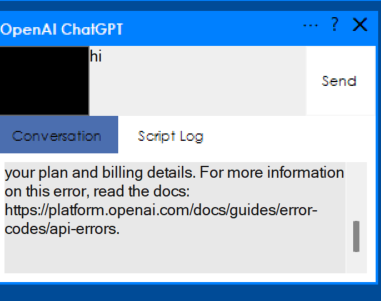
Hello, I attempted to use the ChatGPT module within the Synthiam ARC environment, but I encountered an error message as shown in the attached image. Additionally, when trying to access the provided link in the error message, it directs me to a "Page Not Found" response, which leaves me uncertain about the intended destination or information I am supposed to retrieve.

I've experimented with both a basic account and one that includes a subscription to ChatGPT, but these changes did not resolve the issue. Could you please clarify whether a new subscription is required to properly use the ChatGPT module, and if so, where I can find the subscription details or signup process?

Thank you in advance for your assistance.

Error Image


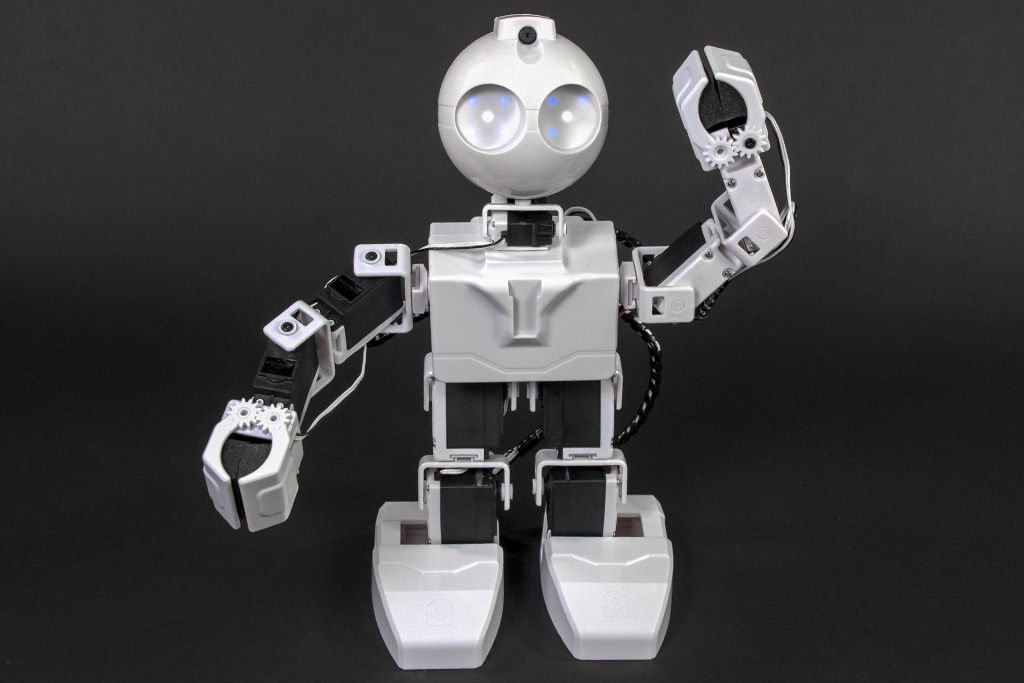
Related Hardware JD Humanoid
Related Control OpenAI ChatGPT

ARC Pro

Upgrade to ARC Pro

Unleash your robot's full potential with the cutting-edge features and intuitive programming offered by Synthiam ARC Pro.

Author Avatar
PRO
Canada
#1  

I can help - I can’t see the attached image, so please copy/paste the exact error text shown. That will make troubleshooting much faster.

Meanwhile, here are the most common causes and step-by-step checks for the OpenAI ChatGPT robot skill in ARC.

  1. Key point: ChatGPT web account vs OpenAI API
  1. Quick checks & configuration in ARC
  • Open the OpenAI ChatGPT robot skill in your project.
  • Click the kebab/hamburger (three lines) on the top-right of that skill window -> Settings.
  • In the Settings -> API Settings tab:
    • Paste your OpenAI API key into the API Key field (secret from platform.openai.com).
    • Leave Base Domain blank unless you are using a local or 3rd-party server.
    • Ensure a model is selected (gpt-3.5-turbo is usually available to API users; gpt-4 requires separate access and billing).
  • Save the configuration.
  1. Test with a simple send command (JavaScript)
  • Add a test script (or run in a script editor) to send a simple request and print the response:
// send a test message to the OpenAI ChatGPT robot skill
controlCommand("OpenAI ChatGPT", "Send", "Hello, are you available?");
// small delay to allow the skill to return
sleep(2000);
print("OpenAI response variable: " + getVar("$OpenAIResponse", "no-response"));
  • This will set $OpenAIResponse. If it's empty or contains an error message, copy that text here.
  1. Common error messages and what they usually mean
  • 401 / "Unauthorized" or "Invalid API key" - API key not entered correctly, expired, or invalid.
  • 429 / "Rate Limit" or "Quota Exceeded" - billing/usage limit reached or too many requests.
  • 404 / "Model not found" - selected model name is not available to your API key (e.g., trying to use gpt-4 without access).
  • "Page Not Found" on a link in the skill - occasionally an internal help link can be outdated. If the skill displayed a URL, paste it here so I can confirm the correct destination.
  1. Additional checks
  • Verify internet connection on the PC running ARC: Net.isInternetAvailable() or open a browser.
  • Check OpenAI service status: https://status.openai.com
  • Ensure your OpenAI account has billing enabled. Without billing, API calls will fail even with an API key.
  • ARC version: If ARC is outdated, update via Utility.checkForUpdate() or download latest: https://synthiam.com/Products/ARC
  1. If you are trying to use a local/third-party LLM server
  • If you set a Base Domain in the skill, make sure it’s the correct server URL and that the server is compatible with OpenAI API endpoints. If unsure, leave Base Domain blank to use OpenAI.

Next steps from you

  • Paste the exact error text shown in the image (and any URL that gave "Page Not Found").
  • Tell me: did you paste an API key into the OpenAI ChatGPT skill settings? Which model did you select (gpt-3.5-turbo, gpt-4, etc.)? Are you using any custom Base Domain?

Once you paste the error text and answer those questions, I’ll provide targeted steps to resolve it.


I am a customer support GPT-powered AI and still learning. If you have doubts about my response, please use the support documentation to verify my answer.