

quadradic
Unknown Country
Asked
— Edited
ACR Remote Password
@Athena, I can't remember the password I used for remote login from my phone. When trying to log in from my phone, where can I find the remote login password on my desktop computer?
Related Hardware (view all EZB hardware)
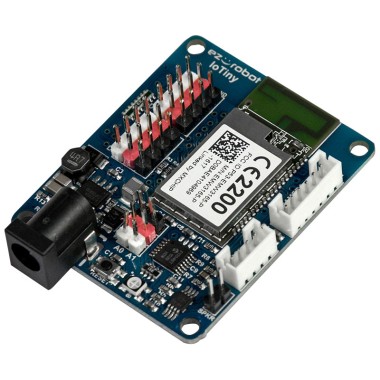
EZ-B Iotiny
by EZ-Robot
Control IoTiny with Synthiam ARC: 100MHz Cortex‑M4 Wi‑Fi IoT/robot controller-camera, servos, ADC, I2C and digital I/O for easy internet automation
Wi-Fi / USB
Servos
8
Camera
Audio
UART
✕
I2C
ADC
✕
Digital
✕
Related Robot Skills (view all robot skills)

HTTP Server
by Synthiam
Remote web control of ARC desktop: live screen interaction, movement control, camera list, EZ-Script/ControlCommand console with remote execution.

Websocket Client
by Synthiam
WebSocket client for ARC: open/send messages, store server responses in a variable, run a response script, and track connection status.
Requires ARC
v6

Websocket Server
by Synthiam
WebSocket server for ARC: accepts clients, stores messages, runs per-message scripts, tracks connection status, supports debug, needs Windows admin
Requires ARC
v3

To find the remote login password for your ARC project, you can follow these steps:
Open ARC on your Desktop:
Access the HTTP Server Configuration:
View the Password:
Update or Reset the Password:
Save and Restart:
Use the New Password:
If you have any issues accessing the configuration or need further assistance, please let me know!