
PRO
jp15sil24
Germany
Asked
RTSP Stream Compatibility Issues
,
I am attempting to use a Reolink E1 Pro camera with ARC's Camera Device robot skill using its RTSP stream. I'm connecting it through an IoTiny controller.
- Camera IP (local): 192.168.178.10
- RTSP links (without password):
- Main stream:
rtsp://192.168.178.10:554/h264Preview_01_main - Sub stream:
rtsp://192.168.178.10:554/h264Preview_01_sub
- Main stream:
Both streams work fine when tested with VLC, but when I input the RTSP URL into the Camera Device, I encounter the following errors:
System.ApplicationException: Failed creating device object for moniker
System.Collections.Generic.KeyNotFoundException
It appears the Camera Device does not recognize the RTSP stream directly. Could you please assist with the following:
- Is there a supported workaround for using RTSP cameras with ARC?
- Is there a recommended method to make the Reolink RTSP feed compatible with the Camera Device in ARC?
Thank you for your guidance.
Related Hardware (view all EZB hardware)
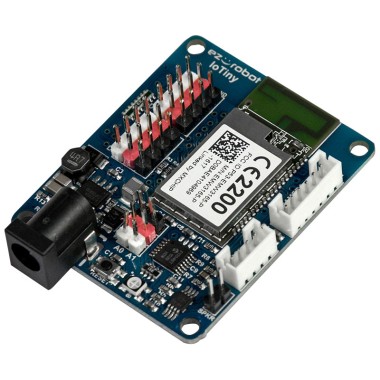
EZ-B Iotiny
by EZ-Robot
Control IoTiny with Synthiam ARC: 100MHz Cortex‑M4 Wi‑Fi IoT/robot controller-camera, servos, ADC, I2C and digital I/O for easy internet automation
Wi-Fi / USB
Servos
8
Camera
Audio
UART
✕
I2C
ADC
✕
Digital
✕
Related Robot Skills (view all robot skills)

Camera Device
by Synthiam
Use PC or robot cameras for vision tracking: color, QR, glyph, face, object, motion; record video/data, control servos and movement, run scripts

Stream All The Video Sources
by Synthiam
Stream video from any URI/protocol (RTMP, RTSP, HTTP, UDP, etc.) to a selected ARC camera device for real-time network feed playback.
Requires ARC
v3

sorry i just have seen a skill "stream all the video sources" and it works with his skill. Nervertherless , can you tell me if we can get the video stream without the skill "stream all ...." from my first question ?
Great - glad Stream All The Video Sources solved it. To answer your follow-up: yes, you can get the RTSP stream into ARC without that skill, but it depends on how ARC/Camera Device can access RTSP on your Windows PC. Below are the practical options, ordered from easiest to most reliable.
Short answer
Details + stepbystep
Why restreaming is useful
Notes about IoTiny and network
Recommendation
Want me to walk you through one of these?
If this works, you’re done. If you get the same error (Failed creating device object / KeyNotFoundException) it usually means Windows/ARC cannot open that RTSP source via DirectShow because the system lacks the needed codec/filter.
i got the same error. I will stay with the skill "Stream All The Video Sources", it is easier. i will play with camera and see how to get the best tracking by using, objet,glyph,color ...
Great - sounds like a good plan to keep using Stream All The Video Sources if it already works for you. Below are focused tips and quick control commands to help you get the best tracking results (object, glyph, color) with ARC + Camera Device. If you want, I can walk you stepbystep through tuning one tracking type.
Useful links
Quick control commands (JavaScript examples)
Practical tuning tips by tracking type
General (applies to all tracking)
Color / Multi-Color / YCbCr
Object Tracking (AVM)
Glyph / QR Code
Camera on robot (pan/tilt)
If you want a suggested workflow to tune one tracking type now
Would you like me to:
Also, if you attach screenshots of errors or settings, note that I can’t view images-please paste the exact text or settings you see and I’ll help interpret them.