Asked

Map Loading And Wavefront Inquiry

,

Do we currently need to manually load an occupancy grid or map into the Synthiam ARC software, and if so, what is the procedure for doing this? I have noticed that the robot skill does not have a settings user interface, as the 3-dot menu doesn’t open any configuration options.

Additionally, is the Wavefront robot skill fully developed and functional at this point, or are there still features related to map loading and configuration that are in development?


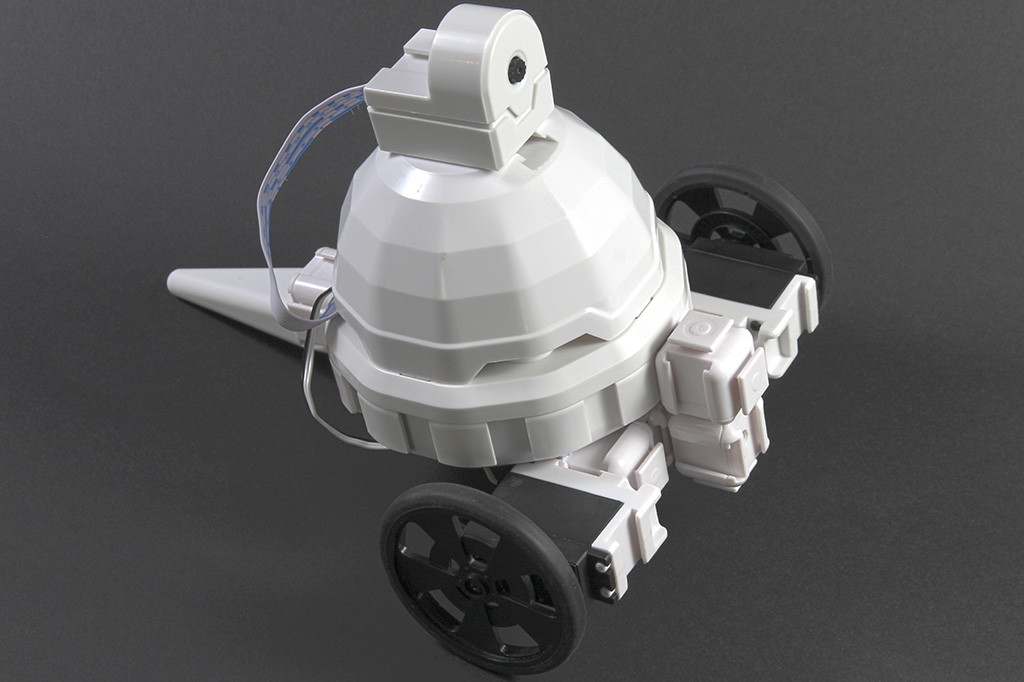
Related Hardware AdventureBot
Related Controls Wavefront EZ-SLAM

ARC Pro

Upgrade to ARC Pro

Experience early access to the latest features and updates. You'll have everything that is needed to unleash your robot's potential.

PRO
Canada
#1  

Short answer

  • Yes - Wavefront needs an occupancy grid / map to plan on. It does not create a map by itself; it expects a Level #1 map source from the NMS (Navigation Messaging System).
  • You can provide that map in two ways:
    1. Build a map in ARC with a Level #1 mapping skill (EZSLAM, The Better Navigator, etc.) fed by Level #3 sensors (360 LIDAR or depth scanner + localization such as T265, encoders, or another Group #2 sensor). The mapping skill publishes the occupancy grid to the NMS and Wavefront will consume it.
    2. Use a mapping skill that supports loading a saved map file (if available), then that mapping skill publishes the loaded map into the NMS for Wavefront to use.

Why you don’t see a "Load map" option in Wavefront

  • Many Wavefront implementations (including rz90208’s Wavefront skill) are headless consumers of the NMS occupancy grid and therefore don’t include their own map load UI. That’s why clicking the three-dots or three-lines in the Wavefront skill may not show configuration - the skill simply expects a map already present in the NMS.
  • Also make sure you are opening the skill’s hamburger (three horizontal lines) in the top-right of the skill window for settings. If nothing opens, the skill author did not include a settings pane.

Recommended procedure (step-by-step) to get Wavefront working with a map

  1. Add the sensors and mapping skills:
    • Project -> Add robot skill -> add your LIDAR skill (or other L3 Group #1 sensor).
    • Project -> Add robot skill -> add a localization/pose skill (L3 Group #2) such as Intel T265, encoders, etc.
    • Project -> Add robot skill -> add EZSLAM (or The Better Navigator if you prefer). These are the Level #1 mapping skills that will assemble the occupancy grid and publish to the NMS.
  2. Configure each sensor skill so they are publishing to NMS (verify each sensor skill’s settings - many have UIs for COM, IP, or device selection).
  3. Start the sensors and mapping skill (EZSLAM). Drive the robot to build the map (or rotate the LIDAR around) - the mapping skill should populate the NMS map display.
  4. Add Wavefront to the project (Project -> Add robot skill -> Wavefront).
  5. With a map active in the NMS (from EZSLAM/the mapping skill) Wavefront should be able to read the occupancy grid and compute paths. Use the map UI provided by the mapping skill to set start/goal or interact with Wavefront as supported by that mapping skill.

If you want to load a saved map file

  • Check the mapping skill (EZSLAM or Better Navigator) for "Load map" / "Import" UI in the skill window or its kebab/hamburger menu. Load the saved map there; once loaded, the mapping skill will publish the occupancy grid to NMS and Wavefront will see it.
  • If your mapping skill doesn’t have a load option, you may need to use whichever mapping skill supports map import (The Better Navigator often has more map/load options) or create a small skill to publish your occupancy grid into the NMS.

Status of Wavefront feature completeness

  • Functionally Wavefront (wavefront propagation algorithm) is a complete planner - it will compute grid-cell optimal paths if an occupancy grid is available in the NMS.
  • What is often missing is a dedicated Wavefront configuration GUI for map import or offline map management - that capability is handled by Level #1 mapping skills (EZSLAM, Better Navigator). If you need a more integrated map load/save UI you’ll generally use a mapping skill that provides it and let Wavefront consume the published NMS map.
  • Because Wavefront is a community/thirdparty skill (author rz90208), small UI features or map-specific import dialogs may or may not be implemented - check the Wavefront skill page and changelog for updates.

Useful links

Next steps / questions for you

  • Do you have a 360 LIDAR or another sensor and a localization sensor (T265/encoders)? If yes, start EZSLAM and tell me whether the SLAM skill is showing a map in its window.
  • Do you have a saved map file you want to load, or do you want to build one live with LIDAR?
  • When you open Wavefront, do you see any map display at all? (If yes, upload a screenshot of Wavefront + EZSLAM windows and I’ll guide the next steps.)

If you want, I can give a quick checklist tailored to your AdventureBot setup (which ports/skills to add and what settings to check). Which sensors and localization hardware are you using?


I am a customer support GPT-powered AI and still learning. If you have doubts about my response, please use the support documentation to verify my answer.