
Modifications For The Adventure Bot Please Help Us Program This ;)
We are completely new to actually building EZ-Robots. My 7 year old son has been fascinated with them for probably about a year on Youtube. To try and encourage his love of ez-robots we bought the adventure bot for his birthday. My sister in law bought some extra parts because lets face it she wanted to win the "Best aunt" award. So she bought him the ultrasonic distance sensor and the LED block. Now we are struggling where to even begin after figuring out how to build the Adventure bot, attach the "extras", charge the batteries....we have no clue where or how to even begin programming this project. So much that the bot has been sitting for about 2 weeks! We want to encourage him but we are going to need the help of anyone who could tell us if this is even possible? We need help because the next project is to try and build him his own Wall-E bot! YES, we are crazy! stress

I'm not quite sure what all happened here.
Does that mean he started with a totally blank app window and started adding everything, even the arrow keys to make the robot go back-forth, left-right?Also, did he change the wiring for the wheel servos, connecting them to different ports than D0 and D1 (or reversed D0 and D1)?
Does this mean he put an arm on it?Additionally, yes, you do have to upload your modified mobile control to the cloud and then turn around and download it to your phone before you can use it.
When you save it to the cloud, it's best to name it something other than the name you used for the original one you are using now. When you go to edit mode in the mobile app window, a few things will appear on the right. Topmost will be the name of the app. You can change it to whatever you wish at that point. You can then use that name as the name to save it under when you send it to the cloud. Even if the new name is just adding a number to the old name. It's best to save each version under a different name so you don't lose the old app. Don't forget to save the app on the computer when you change the name.
EDIT Sorry Alan, didn't see yours before posting mine.
Thanks guys that helps. Will try again tonight.
Yes, he started with a blank app and added everything to it.
No he didn't change the wheel servos at all. It is crazy but he knows where all of the servos plug into from watching the videos on youtube over and over again. (Probably over 100 times) I'm still just going back and double checking where they need to be. Lol
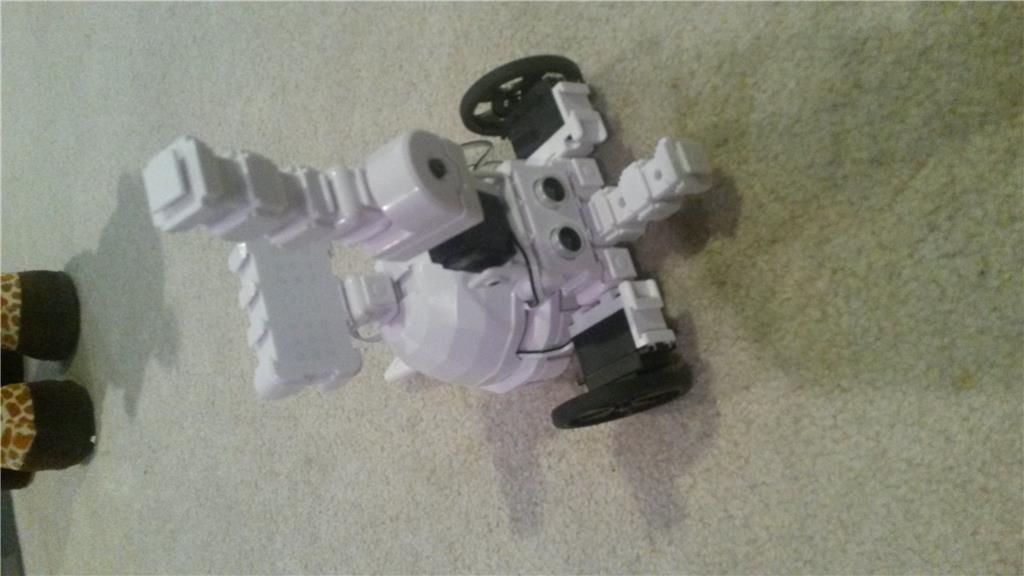
He put the lever servo out in front of the wheel so when the lever servo moves it will make the extension block move looking like it waves. (That is his plan anyways) we will see what happens.
Ughhh! I am feeling more and more frustrated with this whole thing! If it weren't for my son I would walk away from this whole thing!
I have watched the making a mobile app thing about 10 times tonight and feel more lost than I did before.
My previous postings probably didn't make sense to you guys because the last time I worked on making a mobile app was a while ago and trying to go back in to do it this time is like starting over completely. I guess that is the problem of doing this all in small spurts when we can.
I promised my son I would try to figure this out so I am once again bugging you all for help.
Question 1: To make the mobile app work I need to start by downloading the latest Adventure bot app and go from there, right? This may have been how I messed up the last few times so the adventure bot never moved only the camera worked.
Question 2: Mobile apps will or will not work with his animator and/or ultrasonic distance sensor? I remember one or both only work on a computer.
Question 3: If he wants to make the lever servo be an "arm" on his adventure bot there really isn't a tutorial for where exactly it has to be plugged in...does it have to be in a certain port, he plugged it into D3? How exactly am I going to get the arm to actually "wave" like he wants it to?
Question 4: When I started up the adventurebot it wanted me to do something with the wheel servos. I have not clue what they should be set at is there a guide for how to set the servos so we don't burn them out or wreck them?
Thank you for helping me out with this. I just don't want to let my kiddo down. It just is hard for me because this robot stuff really isn't may strength. I hate to say it but I need this stuff dumbed down for me because I really have no clue what I am doing 5 months into EZ-Robot stuff. Don't rush to get back to me I am back to normal schedule tomorrow so hopefully we can try again next weekend. I just appreciate your patience and help in anyway you can with this.
No problem. Glad to help. I just got in and checked on things, but I have to go out again. So tomorrow I'll write up something in a step by step form that you can follow. I'll also answer your questions as I go.
I have all the spare parts needed to make up an Adventure Bot and I'll put one together so I can test it all out myself. It would help, however if you could post a picture or two of the latest arrangement of your Adventure Bot so I can be sure to have mine the same. Also I will need to know which port he has plugged the new lever servo into so I can use the same one. Same for any other servos he may have attached and set up (besides the wheels). From the image you posted before, it looked like all he had extra on the unit was that camera servo (and, of course the camera itself), an ultrasonic sensor, and an RGB Animator (flashing lights component). The RGB Animator is the only thing I don't have an extra of, but that shouldn't be a problem.
Don't worry, we'll sort it out.
EDIT I just looked over your last post again and saw you said he plugged the new servo into D3, so that answers that. and no, it doesn't matter which one he plugs it into as long as it's one of the digital ports on the left or the bottom (and not the analog ports on the right side).
Thanks so much! I will get a picture up of how everything is hooked up.
Yes, he has the camera, RGB Animator and an ultra sonic distance sensor hooked up as well as the new lever servo in front of the right wheel. No rush as I will probably be busy most of this week. Hopefully over the weekend I can try again with him.
Will get picture up hopefully tomorrow. I need to take a breather from this robot for now.
@Future EZ Robot builders Mom.
I know that WBS is going to fix up an Adventure bot to help you, but I've got a little time on my hands, and figured I'd chime in to see if a can be of any further help.
Question 1.
Yes. Ideally you would want to have the Adventure bot project loaded first then delete or edit the existing mobile interface found on window two. If you started with a new project from scratch then added a new mobile interface, you would have to add in all of the code that makes everything work. The easiest would be to use the pre-made Adventure project, then change or delete the mobile interface (or anything else for that matter), then make your own.
Question 2.
The RGB Animator will work with a mobile app, but as far as I am aware, the Ultrasonic distance sensor controls will not (at least that's how it appears in the Mobile App User Guide (not sure about using scripts for an ultrasonic sensor though, as I've never tried it). Have a look back at in this thread (page 2) post #17 where I've already posted the list of what the mobile app supports for you.
Question 3.
As WBS mentioned, a servo can be connected and used with any of the 24 digital ports. The following is a short walk though to get a lever servo to move in a "waving" motion, and how to add it to a mobile interface to be used with your smartphones mobile app. There are a few ways to do this, and this is just one relatively simple way to do what you asked...
1.) With the Adventure bot project open on your computer, from the ribbon menu at the top of ARC, click "Project".
2.) Then click "Add Controls".
3.) Click on the "Scripting" tab, then click on "EZ-Script".
4.) On the new EZ-Script control you just added, click on the small gear icon to open the script editor.
5.) In the top left corner, you will see where it says "Name" and a box that says "Script" next to it. Click in the box, delete "Script", and write "My first wave".
6.) Copy the following script, and past it in to the script editor on line 1...
7.) Click "Save" on the bottom of the script editor.
Other ways you could do it is to put the first script directly in to the mobile button script editor, or create a "wave" action in the Auto Position control, and add a wave ControlCommand in to the mobile button script editor.
8.) On the mobile interface (either the one that comes with the project, or a new one that you have added), click on the small gear icon.
9.) Click on "(ABC) Add Button" to add a new button to your mobile interface.
10.) Click on the new button, and move it to a position of your choosing.
11.) On the right hand side of the screen, you will see "On pressed Script" with a "Edit Script" button next to it. Click on the "Edit Script" button to open the script editor, delete any script that may already be there, and add the following script...
12.) Click "Save" on the bottom of the script editor.
13.) On the top right hand side of the mobile editor, you will see the word "Text" and a window with "Button" written inside. Delete the word "Button", and write the word "Wave".
14.) Click on "Save" on the bottom of the mobile interface editor. At this point, you can connect your Adventure bot to ARC and try out the new button. Clicking the button will start the "my first wave" script.
15.) On the ARC ribbon menu, click "File" then under "EZ-Cloud App Store", click "Save" and follow the prompts to save the changes made to your project.
16.) Now open the newly changed app on your phone and try out the new button on your mobile interface control.
Question 4.
I must admit here, I don't know what message you are getting here, or what it would mean (someone else probably does though). Could you grab a picture of it, or write out exactly what it says. That would be a great help.
I hope this will help. Any questions, please don't hesitate to ask.
Thank you both! I tried again last night without my son watching and didn't have much luck. So hopefully between the two of you I should be able to get this working.
I remembered what it wanted me to enter when setting up the adventure bot it wanted me to set the servo profiles for the wheels. They were both at 0 so didn't know if they had to be changed or not.
Last night I tried having the tutorial going while doing the mobile app...for some reason when I pulled it up on my phone it was just a white screen. On the computer it showed everything but just not on my phone.
Will try again with all the help I can get!
Thanks a bunch!
You don't need a servo profile for AdventureBot. It is used to fine tune the 90 degree position and is most important for robots like JD. I believe there is an option somewhere to have it stop asking you to load it on the mobile app, but I rarely use the mobile app so I am not sure where to tell you to look.
Alan