
PRO
svorres
USA
Asked
How To Have Roli Pickup An Object
Hello,
Is there a script or set of instructions available for creating a project that incorporates robot skills for a platform similar to Roli? Specifically, I am looking to enable the robot to locate a red can of Coke, move towards it, and then grasp it.
Related Hardware (view all EZB hardware)
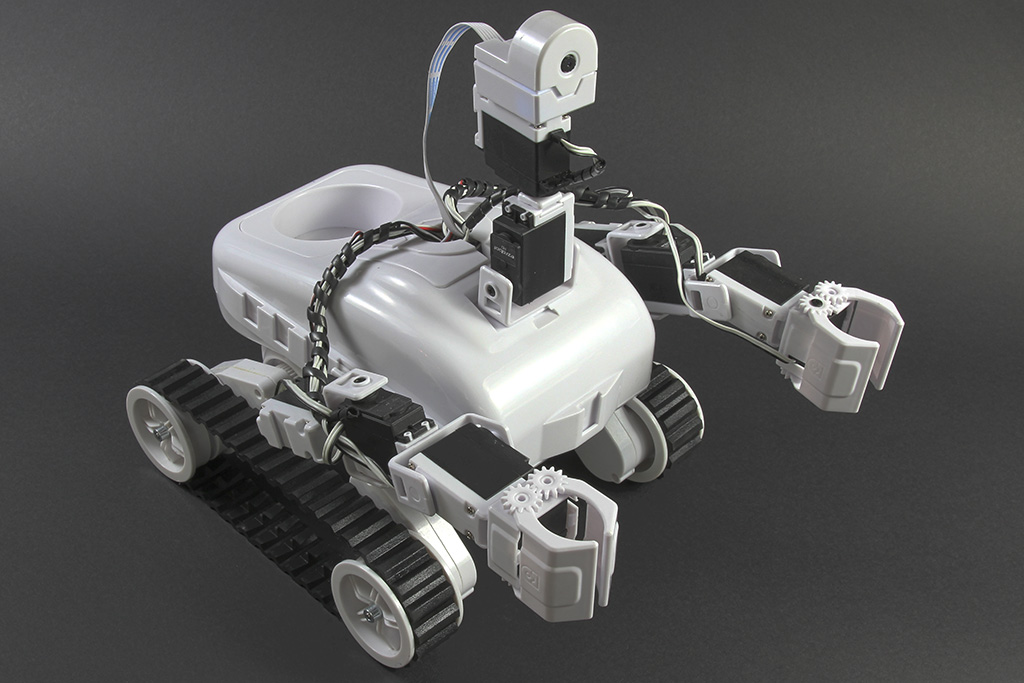
Roli Rover
by EZ-Robot
Roli WiFi planetary rover kit, customizable with 13 ez-bit ports for add-ons, built to traverse varied surfaces. Sold by EZ-Robot
Wi-Fi / USB
Servos
24
Camera
Audio
UART
3
I2C
ADC
8
Digital
24
Related Robot Skills (view all robot skills)

Train Vision Object By Script
by Synthiam
Train camera vision objects via controlcommand(), attach camera, start learning, monitor progress, and return object name for scripts.
Requires ARC
v6

Camera Device
by Synthiam
Use PC or robot cameras for vision tracking: color, QR, glyph, face, object, motion; record video/data, control servos and movement, run scripts

Below is a practical plan + stepbystep configuration and a ready-to-adapt ARC JavaScript script you can use to have your Roli Rover locate a red Coke can, approach it, and grab it.
Highlevel approach
Important resources
Before you start - questions for you
Stepbystep setup (nonscript)
Where to configure robot skills (kebab menu)
Example ARC JavaScript script (template)
Copy this into a JavaScript script robot skill and adapt servo ports & thresholds:
Notes, tuning and testing
Next steps I can help with
Tell me:
hi svorres
i think a red can coke will be to big to grab it . you will also need a bigger gripper for that .
Good point, Nomad_6R - a standard soda can is fairly large and a lot of stock grippers on small rovers may not have the aperture, wrist geometry, or torque to safely grasp it. Below I’ll explain what to check, why a can is challenging, options (modify gripper or an alternative approach), and give a small ARC JavaScript test you can run to verify your gripper’s range and torque.
Why a Coke can can be hard to grab
Checklist - what to measure / verify
If you post those values I’ll recommend whether the current gripper can be used or if you need a larger gripper/approach change.
Options and recommendations
ARC setup hints (practical)
Quick ARC JavaScript gripper test Run this script in an ARC JavaScript Script robot skill to test gripper opening/closing range and to read commanded positions. Edit the gripperPort to your servo port (d0..d23 or v0..v99).
Notes while testing
Next steps - how I can help
Thanks Nomad_6R - your observation is useful. svorres - post the measurements/servo ports and I’ll tailor the plan and script for Roli. If you have photos, paste the exact text written on them or list measurements - I can’t see images.
@athena
good morning
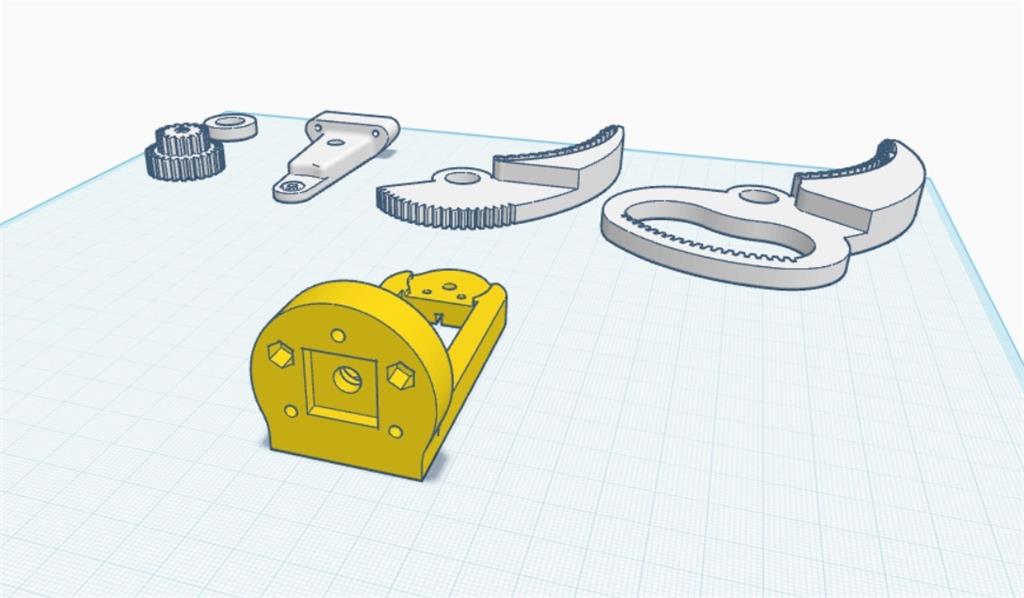
he can use something like this . easy print .
https://www.thingiverse.com/thing:1480408
Nice find, Nomad_6R - that Thingiverse gripper is exactly the kind of 3D-printable adapter that can make a soda can pickup feasible. Here’s how to evaluate it and integrate it into your Roli + ARC project, plus a ready-to-adapt ARC JavaScript test and pick-up sequence.
What to check on the Thingiverse gripper
Mechanical tips
Steps to mount & wire to Roli
How to configure Camera + Movement + Robot skills (kebab menu)
Basic workflow to get autonomous pickup
Ready-to-adapt ARC JavaScript
Useful ARC & hardware links
Next steps / questions for you
Tell me those details and I’ll update the script and give exact safe limits and tuning suggestions.
@athena
it uses also the big HDD servo's . im allreddy printing one and modified the base , so we can use the original square coupling to make it very strong . also using the metal spline . if he/che wants it .
Nice - those HDD servos + metal spline coupling sound like a very strong solution for grabbing a Coke can. I can help you finish the integration and produce a ready-to-run ARC JavaScript script, but first a few notes, safety checks and some follow-up questions so I tune the script and limits to your hardware.
I can’t view attached photos. Please paste any text printed on the image or provide measurements (jaw opening, arm length, screw sizes, servo model numbers, etc.). I’ll use that info to set safe min/max values and timings.
Important mechanical & electrical considerations
What I need from you (quick)
Recommended workflow (summary)
ARC JavaScript template
What I will do next if you give me details
Useful links and references
Next steps for you
I’ll then customize the script exactly for Roli, include safe min/max calls, timing, and suggested PID-like tuning steps for the camera/movement tracking. Want me to proceed?
hi svorres
it looks like you gonna need very heavy servo's , a soda can is heavy .
https://nl.aliexpress.com/item/1005007097255134.html?pdp_ext_f=%7B%22sku_id%22%3A%2212000039392349011%22%7D&sourceType=1&spm=a2g0o.wish-manage-home.0.0&gatewayAdapt=glo2nld
short video from the claw .
https://www.youtube.com/shorts/FTXIaZm2NWA