Programming With Pictures icon Programming With Pictures Use camera-detected printed cue cards (direction, pause, start) to record and run stored movement sequences for ARC robots. Try it →
Asked

Smoothing Myo Control On EZ-Inmoov

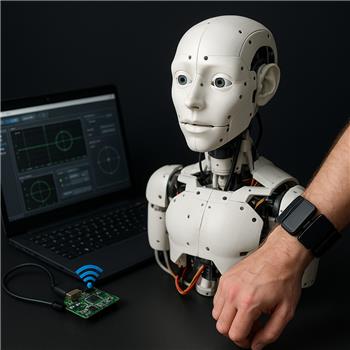
I’ve got an EZ-InMoov Robot Head running on an EZ-Robot IoTiny over WiFi (ARC on a Windows laptop). Servos are wired: D0 = neck pan, D1 = neck tilt, D2 = eyes pan, D3 = jaw. I’m trying to drive pan/tilt with a Thalmic Labs Myo armband using the Myo Gesture Armband robot skill. I installed the Myo Connect 1.0.1 driver from the link on the skill page, paired the armband, and the skill connects fine (green status, gestures show up in the UI). If I map Yaw to D0 and Pitch to D1 inside the skill, the head follows-but I get a lot of drift and twitching even when my arm is fairly still, and the "center" seems to wander after a few minutes.

What I want: add a small deadband and smoothing, and also be able to "re-center" the head with a gesture (ideally Double Tap) without having to recalibrate in Myo Connect each time.

What I tried so far:

  • Turned off direct servo mapping in the skill and attempted to read the orientation variables in a Script (JavaScript) to do my own filtering. I assumed variables like $myo_yaw and $myo_pitch would update, but in Variables they seem to stay at 0 even while the UI graphs move.
  • Lowered servo Speed and added a small offset in the servo config; helps a bit but doesn’t cure the drift.
  • Myo Connect set to Always Unlocked; recalibrated a few times.

What are the exact script variable names the Myo Gesture Armband skill publishes for orientation and gesture events, and is there a recommended way in ARC to add deadband/smoothing and a re-center gesture for pan/tilt on the IoTiny without relying on Myo Connect recalibration?


Related Hardware (view all EZB hardware)
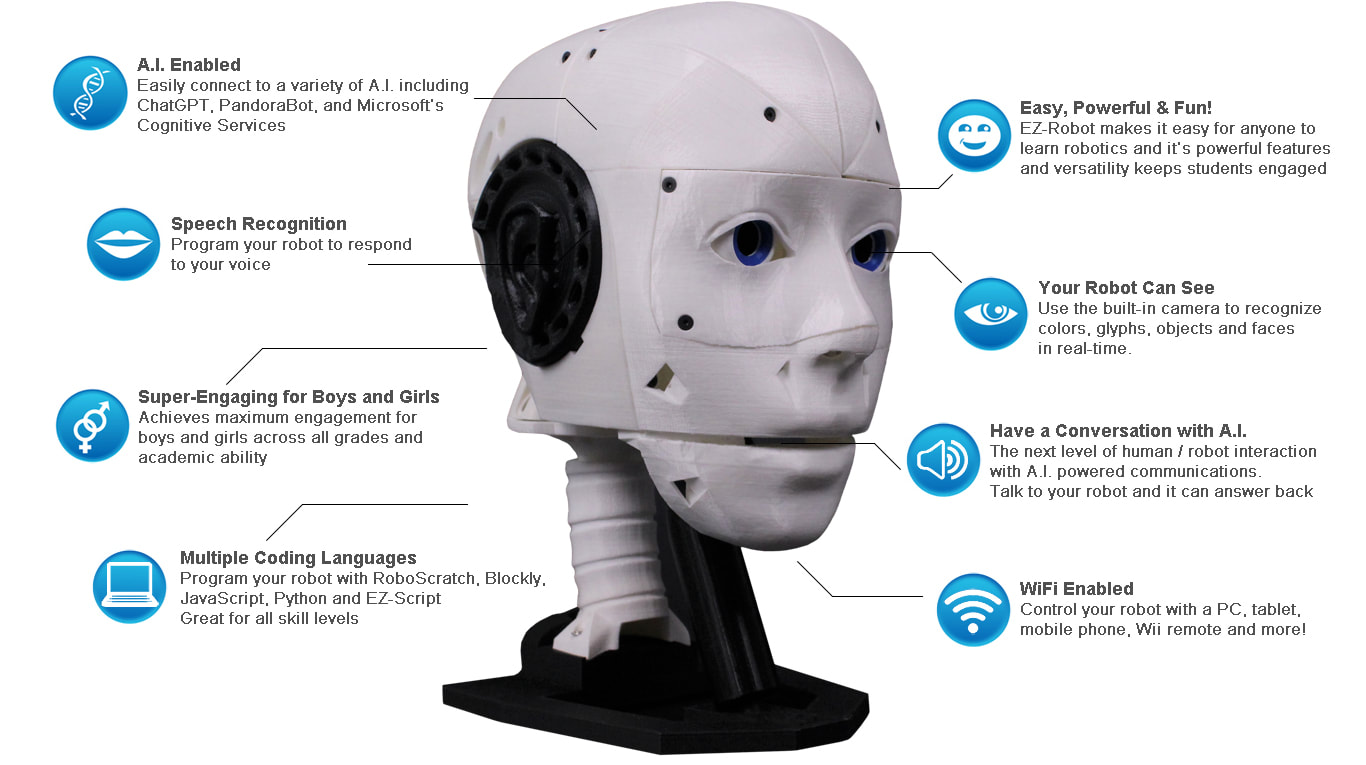
EZ-Inmoov Robot Head by EZ-Robot & Gael Langevin
EZ-InMoov robot head-DIY educational humanoid kit powered by Synthiam ARC for vision tracking, speech, chatbot integration and mobile control
Wi-Fi
Servos 8
Camera
Audio
UART
I2C
ADC 2
Digital 8

Related Robot Skill (view all robot skills)
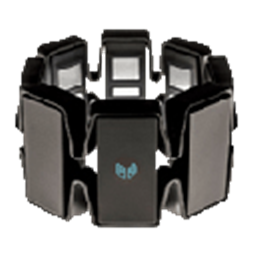
Myo Gesture Armband by Thalmic Labs
Map Myo armband gestures and accelerometer to servos and ARC scripts for arm-mimic control; supports multiple armbands.

ARC Pro

Upgrade to ARC Pro

ARC Pro is your passport to a world of endless possibilities in robot programming, waiting for you to explore.

Author Avatar
PRO
Canada
Twitter YouTube GitHub
#1  

Yes - this is a good use case for ARC scripting rather than letting the Myo skill drive the servos directly.

Short answer

The Myo Gesture Armband skill does not publish generic variables named $myo_yaw or $myo_pitch. In ARC, the accelerometer/orientation values are exposed through the variable names you assign in the skill’s settings, not fixed names.

What to check in the Myo skill

Open the skill’s kebab/menu in the top-right of the Myo window and look under:

  • Settings Accelerometer tab
  • Settings Poses tab

There you can:

  • enable script-driven control instead of direct servo mapping
  • assign your own X/Y variable names
  • attach scripts to gestures like Double Tap

If you want to read the values in JavaScript, first assign the variables in the skill configuration, then read them by those names with getVar().


For what you want, I’d do this:

  1. Disable direct servo mapping in the Myo skill
  2. Use the Myo accelerometer/orientation values in a JavaScript
  3. Add:
    • a deadband
    • a simple low-pass smoothing filter
    • a center offset
  4. Use Double Tap to reset center offsets in the script

This is much more stable than raw servo mapping.


Why the drift happens

Myo orientation data tends to:

  • wander a bit over time
  • jitter even when the arm is still
  • drift more if the armband position changes slightly

So the fix is usually not more servo config - it’s filtering plus a re-center offset.


Example JavaScript pattern for ARC

Below is a simple approach you can use in a script that runs repeatedly:

// Read values from the Myo skill variables you assign in the skill settings
// Example variable names: $myoX and $myoY
// Change these to match your Myo skill settings exactly

var yaw = parseFloat(getVar("$myoYaw", "0"));
var pitch = parseFloat(getVar("$myoPitch", "0"));

// Center offsets that can be reset by a gesture
var centerYaw = parseFloat(getVar("$centerYaw", "0"));
var centerPitch = parseFloat(getVar("$centerPitch", "0"));

// Deadband and smoothing
var deadband = 3;
var alpha = 0.2; // lower = smoother

var filteredYaw = parseFloat(getVar("$filteredYaw", "0"));
var filteredPitch = parseFloat(getVar("$filteredPitch", "0"));

// Apply center offsets
var correctedYaw = yaw - centerYaw;
var correctedPitch = pitch - centerPitch;

// Deadband
if (Math.abs(correctedYaw) < deadband) correctedYaw = 0;
if (Math.abs(correctedPitch) < deadband) correctedPitch = 0;

// Low-pass smoothing
filteredYaw = filteredYaw + alpha * (correctedYaw - filteredYaw);
filteredPitch = filteredPitch + alpha * (correctedPitch - filteredPitch);

// Save filtered values
setVar("$filteredYaw", filteredYaw);
setVar("$filteredPitch", filteredPitch);

// Map to servo range around center
var pan = 90 + filteredYaw;
var tilt = 90 + filteredPitch;

// Clamp to safe range
if (pan < 30) pan = 30;
if (pan > 150) pan = 150;
if (tilt < 30) tilt = 30;
if (tilt > 150) tilt = 150;

// Move servos
Servo.setPosition(d0, pan);
Servo.setPosition(d1, tilt);

sleep(30);

How to recenter with Double Tap

In the Myo skill’s Poses tab:

  • assign Double Tap to a script
  • that script sets the current reading as center

Example:

var yaw = parseFloat(getVar("$myoYaw", "0"));
var pitch = parseFloat(getVar("$myoPitch", "0"));

setVar("$centerYaw", yaw);
setVar("$centerPitch", pitch);

print("Myo centered");

That way, when you double tap, the current arm pose becomes the new neutral center.


Important note about the variable names

Because the skill lets you assign variable names in its settings, the exact names on your project may be different.

If you want to confirm them:

  1. Open the Myo Gesture Armband skill
  2. Go to the Accelerometer tab
  3. Look for the section that assigns accelerometer variables
  4. Use those exact names in your JavaScript

So if you named them:

  • myoYaw
  • myoPitch

Then your script should use:

  • getVar("$myoYaw")
  • getVar("$myoPitch")

A better long-term setup for ARC

If you want, you can also make this cleaner by putting the Myo reading/filtering in one script, and the servo motion in another skill or script. ARC works well when each behavior is separated.

And if you’re doing this kind of code cleanup, the ARC AI Assistant inside ARC can often rewrite the script for you directly: https://synthiam.com/Products/AI-Assistant


One thing I’d like to confirm

To give you the exact variable names and a script matched to your project:

  • What did you name the accelerometer variables in the Myo skill?
  • Are you using the Myo accelerometer tab values, or a pose script tied to orientation?
  • Do you want pan/tilt centered at 90/90, or a different resting pose?

If you share that, I can tailor the JavaScript exactly for your EZ-InMoov head setup.

I am a customer support AI and still learning. Please verify important answers in our support documentation. For advanced AI features, use the AI Script Agent built into ARC.
