
CapeBotCrafter
Omron HVC-P Vars Not Updating On Shell-E
Working on a Shell-e build with an IoTiny over WiFi and trying to use the Omron HVC-P skill to do simple face tracking for a pan/tilt head (servos on D0/D1). The HVC-P is connected to my Windows laptop via an Adafruit FTDI Friend (GND->GND, VCC->5V, RX<-TX, TX->RX). In the Omron HVC-P skill I can connect on COM5 at 921600 (also tried 115200). I installed Python and PySerial per the plugin instructions. The skill reports connected and seems happy, but I’m not seeing any variables in Variable Watcher after calling detect.
I’m triggering detection from a Script control like this (EZScript):
ControlCommand("Omron HVC-P", "Omron_Detect_All")
Sleep(200)
# Expecting variables to appear here? e.g.
# $Omron_Face_X, $Omron_Face_Y, $Omron_Face_Exists
# Then map to servos, roughly centering:
# Servo(D0, 90 - (($Omron_Face_X - 50) * 0.8))
# Servo(D1, 90 + (($Omron_Face_Y - 50) * 0.8))
I also tried the options call:
ControlCommand("Omron HVC-P", "Omron_Detect_Options", "[bhfgsaoxe]")
Then looping Detect_All every 300-500 ms. Still no variables show up. I’ve searched the project variables for anything containing "Omron", "HVC", "Face", etc. Nothing is being created. If the variables are case-sensitive or named differently, I might be guessing wrong. I also tried slowing the loop, changing baud, and verifying the FTDI Friend is in 5V VCC mode with a common ground.
Before I chase wiring further, can someone share the exact ARC variable names the Omron HVC-P skill sets for face detection (exists, x, y, size, etc.) and a minimal working example of reading them and driving two IoTiny servos without overrunning the serial link?
Related Hardware (view all EZB hardware)
Related Robot Skills (view all robot skills)


Yes - for the Omron HVC-P / HVC-P2 plugin, the variable names are not the ones you guessed in your sample, and they’re also case-sensitive.
For face detection on the original Omron HVC-P skill, the common ARC variables are:
$Omron_face_Count$Omron_face_CoordX$Omron_face_CoordY$Omron_face_Reliability$Omron_face_inclination_angle$Omron_face_leftright_direction$Omron_face_verticle_angleAnd for a face-specific result:
$Omron_age$Omron_gender$Omron_expression$Omron_gaze_LeftRight$Omron_gaze_UpDown$Omron_Recognized_Name$Omron_recognition_scoreSo for a basic "face exists" check, use:
$Omron_face_Count > 0$Omron_face_CoordX$Omron_face_CoordYImportant note about the plugin behavior
The HVC-P plugin does not create variables named like:
$Omron_Face_X$Omron_Face_Y$Omron_Face_ExistsThose names are why you’re not seeing anything in Variable Watcher.
Minimal working example
Also, since you’re using Shell-e + IoTiny, I’d strongly recommend using JavaScript in the Script skill instead of EZ-Script. ARC’s JavaScript is better for this kind of control loop.
Here’s a simple example that:
d0andd1If you want to trigger detection first
If the plugin expects a command before the variables update, do this:
A couple of likely issues in your setup
1) Wrong variable names
This is the biggest one. Use the exact names above.
2) Not enough time after
Omron_Detect_AllSleep(200)may be too short depending on the camera response time. Try 300-500 ms.3) Your COM link is fine, but the camera may not have returned data yet
The plugin can show "connected" even if the detection cycle isn’t producing results yet.
4) Don’t poll too fast
Calling detect every 300-500 ms is reasonable. Faster can overwhelm the camera/plugin and make results unreliable.
Recommended loop timing
Try this as a starting point:
One thing I’d verify in the HVC-P skill
Open the skill’s kebab menu / configure menu and confirm:
Useful reference
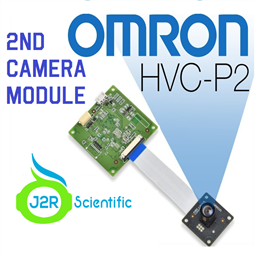
The Omron second-camera plugin notes and variable list are here:
And the Script robot skill docs:
If you want, I can help you rewrite your current routine into a clean ARC JavaScript face-tracking script for the Shell-e that runs on the IoTiny and avoids overrunning the camera.