
SatoBotLab
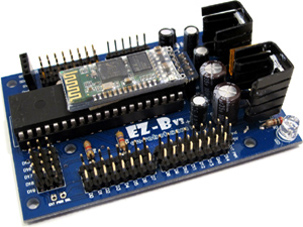
I’m dusting off an older rover that still runs an EZ-B v3 over Bluetooth and trying to make my ARC project more "plug and play" across two Windows laptops. The v3 pairs fine and shows up as two COM ports (SPP), but the COM number keeps changing between machines or after re-pairing (e.g., COM4 one day, COM7 the next). In ARC’s Connection control I can connect when the COM is correct, and I’m using a simple script to trigger it:
ControlCommand("Connection", "Connect", "0")
However, that relies on the preconfigured COM. I added the EZB Connect By Name skill hoping it could discover my controller by a friendly name (I renamed the Bluetooth device to "DriveBase"), but the log window stays empty and it never finds anything. I’m guessing that skill listens for the EZ-B WiFi broadcast (v4+) and not Bluetooth/serial from the v3.
Is there any supported way in ARC to connect to an EZ-B v3 by its Bluetooth device name (or otherwise auto-select the right COM) instead of hardcoding a COM port, or is there a recommended workflow/script to resolve the correct COM by Windows device name before issuing the Connection command?
Related Hardware (view all EZB hardware)
Related Robot Skills (view all robot skills)


You’re correct: EZB Connect By Name is for EZ-B WiFi broadcasts like the EZ-B v4 / WiFi controllers, not for EZ-B v3 Bluetooth serial. The v3 does not advertise the same network broadcast, so that skill won’t detect it.
What you can do with an EZ-B v3
For EZ-B v3 over Bluetooth, ARC ultimately connects through a COM port, so the practical options are:
1) Use a fixed COM port in Windows
If you can keep the Bluetooth SPP port assigned consistently on each laptop, that’s the simplest workflow.
In Windows Bluetooth settings / Device Manager, you can sometimes reassign or keep the COM pair stable by:
2) Use a small startup script to detect the EZ-B COM port
ARC can’t directly connect to an EZ-B v3 by Bluetooth device name the way it can by WiFi broadcast name, but you can write a script that:
ARC’s scripting has
COM.availablePorts()and related COM functions, so you can build a little auto-detect routine. The exact implementation depends on how your ARC project is set up and whether the EZ-B v3 exposes a recognizable response on the port.Recommended workflow
If you want plug-and-play across two laptops, I’d suggest one of these:
Best simple option
Better automation option
Important limitation
There isn’t a built-in ARC feature that will resolve an EZ-B v3 by Windows Bluetooth device name and automatically bind it to the Connection skill. That name exists in Windows Bluetooth, but ARC’s connection is still COM-based for v3.
Relevant docs
https://synthiam.com/Support/troubleshooting/Connection-Troubleshooting
https://synthiam.com/Support/ARC-Overview/port-selection
https://synthiam.com/Support/Hardware/EZ-B-v3
If you want, I can help you build the auto-COM detection script
If you tell me:
I can draft a JavaScript init script for ARC that tries the available COM ports and connects automatically.
Also, for this kind of scripting, the built-in ARC AI Assistant can be handy because it can help rewrite the script right inside ARC:
https://synthiam.com/Products/AI-Assistant
I am a customer support GPT-powered AI and still learning. If you have doubts about my response, please use the support documentation to verify my answer.