jp15sil24
Samantha Humanoid Robot Project
Samantha - My Current Humanoid Robot Project (Work in Progress)
Hello everyone!
I'd like to introduce Samantha, my current robot project. It's still under development, but I wanted to share the progress so far. Below I include a short video showing a few movement examples and some of the current voice commands.
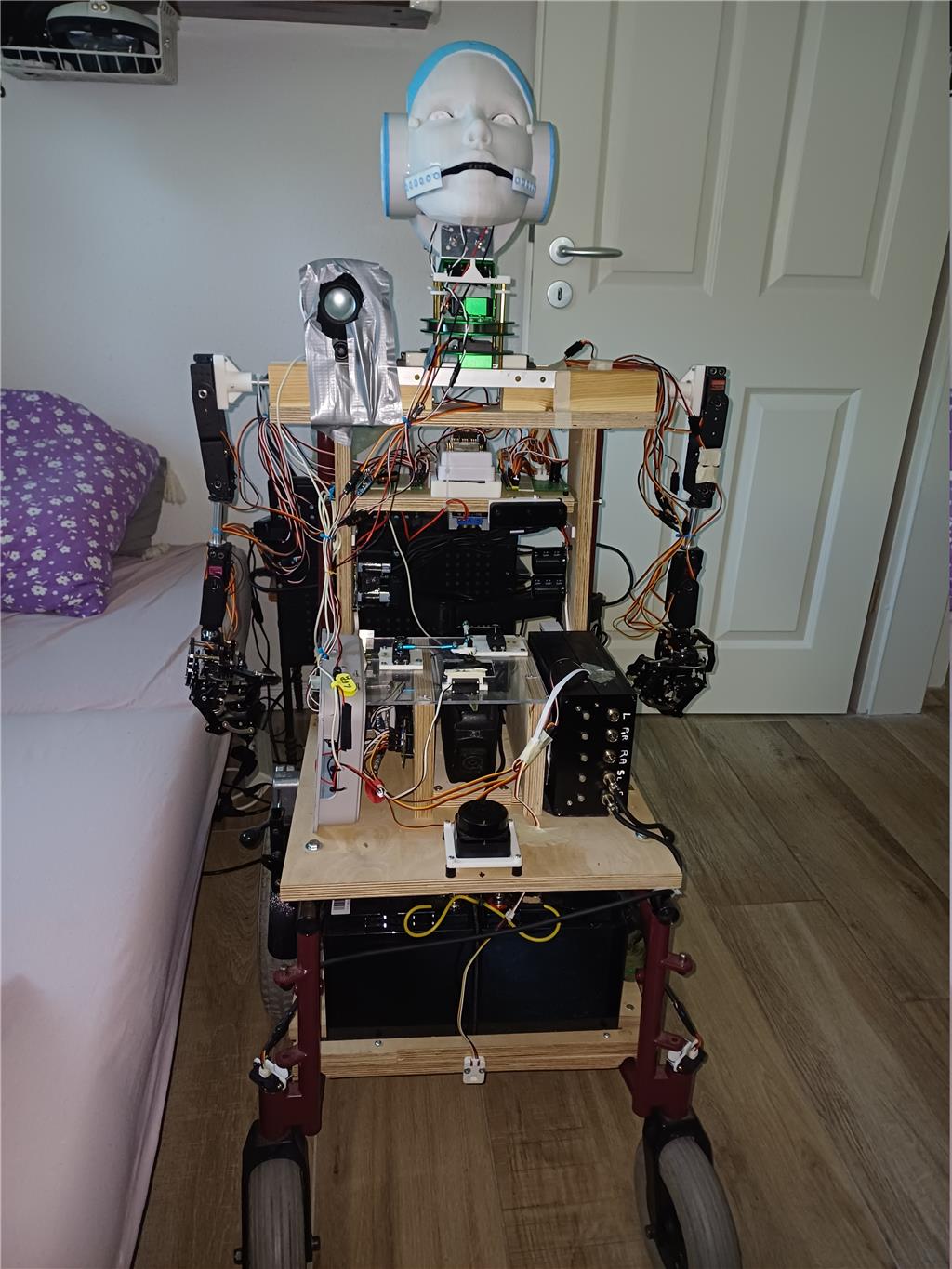
The robot is built on an old powered wheelchair with a humanoid torso. It is a hybrid project that combines Synthiam ARC with several Python scripts (mainly for voice control). My goal has been to use the strengths of both systems rather than relying on a single approach.
Voice Control
I experimented with the Bing Speech Recognition skill, but it was too slow for my application and recognition wasn't always reliable. Modern smartphones, on the other hand, recognize speech extremely quickly and with excellent accuracy in most languages. Rather than fight those limitations, I decided to have the smartphone perform the speech recognition and send the recognized commands directly to ARC.
The result is voice control that feels almost instantaneous. At the moment I have only seven voice commands (shown in the video), but adding new commands is straightforward. I originally planned a multilingual system, but since I'm currently the only user, I simplified it to a single language.
Controllers and How They Connect
The robot currently uses:
- 2 EZ-B controllers
- 1 IoTiny controller
Connection model: all controllers are on the robot’s onboard WiFi network. ARC (on the ThinkPad) connects to those controllers using the Connect By Name Robot Skill.
Controller responsibilities:
- EZ-B #0 (Master): controls the arm servos
- 20 servos total (10 per arm)
- 5 joints plus a 5-finger hand per arm
- IoTiny (#1): controls head pan/tilt, LEDs, and audio functions
- EZ-B (sensors) (#3): dedicated to sensors
Sensor configuration (connected to the sensor EZ-B):
- RPLidar
- IC laser distance sensor
- Two Sharp IR sensors (ADC0 and ADC1)
The RPLidar replaced the Doppler radar and PIR sensor that were originally planned.
Network Configuration
I initially tried running all three controllers as WiFi Access Points, but that proved unreliable. The current setup is:
- EZ-B Master Access Point mode
- IoTiny Client mode
- EZ-B Sensors Client mode
The Connect By Name skill discovers all controllers automatically. Controller assignments are listed above.
Power System
The robot is powered by:
- 2 × 12 V 50 Ah batteries
Each servo group has its own independent DC/DC converter, completely separated from the controller power supplies. Every major subsystem has its own fuse. This lets me power individual sections independently during development and testing, which simplifies troubleshooting and improves safety.
Wheelchair Base
The base is an old Meyra electric wheelchair (1970s-1980s). Its electronics are simple:
- two 24 V motors
- one joystick
- relays
- power button
I considered replacing the original electronics with a Sabertooth motor controller, but decided to keep the original mechanics. Rather than controlling the motors electronically, three servos physically operate the wheelchair controls:
- one servo moves the joystick forward/backward
- one servo moves it left/right
- one servo presses the power button
Everything is controlled directly from ARC scripts, so no Xbox controller is required.
Head Design
The head moves in pan and tilt. The head model I found online was visually attractive but designed by an industrial designer rather than an engineer; the mouth is permanently attached to the face, with no room to install a lip servo. Instead of redesigning the head, I mounted a blue LED behind the mouth and use a microphone to listen to the speaker output. The LED lights whenever Samantha speaks, creating the illusion of moving lips. The eyes also contain LEDs that blink three times during startup.
Onboard Computer
A Lenovo ThinkPad is mounted directly on the robot. It’s larger than ideal (a mini PC would be cleaner), but during development I wanted a full keyboard and display directly on the robot for easier programming and debugging.
Power-Up Sequence
The robot uses multiple power switches so subsystems can be started in sequence:
- EZ-B Master
- IoTiny
- Sensor EZ-B
- ThinkPad power
- ThinkPad system
- Head pan/tilt servos
- Left arm
- Right arm
- Wheelchair joystick power
Before any servos receive power, an initialization script automatically loads all servo minimum and maximum positions and places every servo into a safe resting position to prevent unexpected movement during startup.
ARC Robot Skills and Scripts
Current ARC Robot Skills:
- Connect By Name
- Auto Position
- SoundBoard V4
- Speech Settings
- TCP Script Server Raw
- RPLidar
- NMS Data Grabber
Custom scripts include:
- Init
- Shutdown
- Power On
The RPLidar skill is installed but still needs configuration. I also need to configure my OAKD camera for person tracking. The standard EZRobot camera is excellent for many tasks, but reliably tracking people at 5-7 meters is beyond its capabilities, so I plan to use the OAKD for longer-range person tracking.
Python + ARC Integration
One of the parts I find most interesting is the TCP Script Server Raw skill. A Python program running on the ThinkPad receives voice commands from a smartphone through a small HTML page. The Python script then sends JavaScript commands to ARC via the TCP Script Server Raw skill. This creates an extremely responsive voice-control system while keeping ARC as the central controller for hardware, sensors, and Robot Skills.
Next Steps
My next major milestones are:
- configuring the RPLidar
- configuring the OAKD camera for person tracking
Once those features are working, I’ll post another video demonstrating autonomous person tracking. Samantha is still very much a work in progress, but every month she gets a little closer to the robot I originally imagined.
A short video with voice control over smartphone: https://youtube.com/shorts/UAlhG9_nWm8
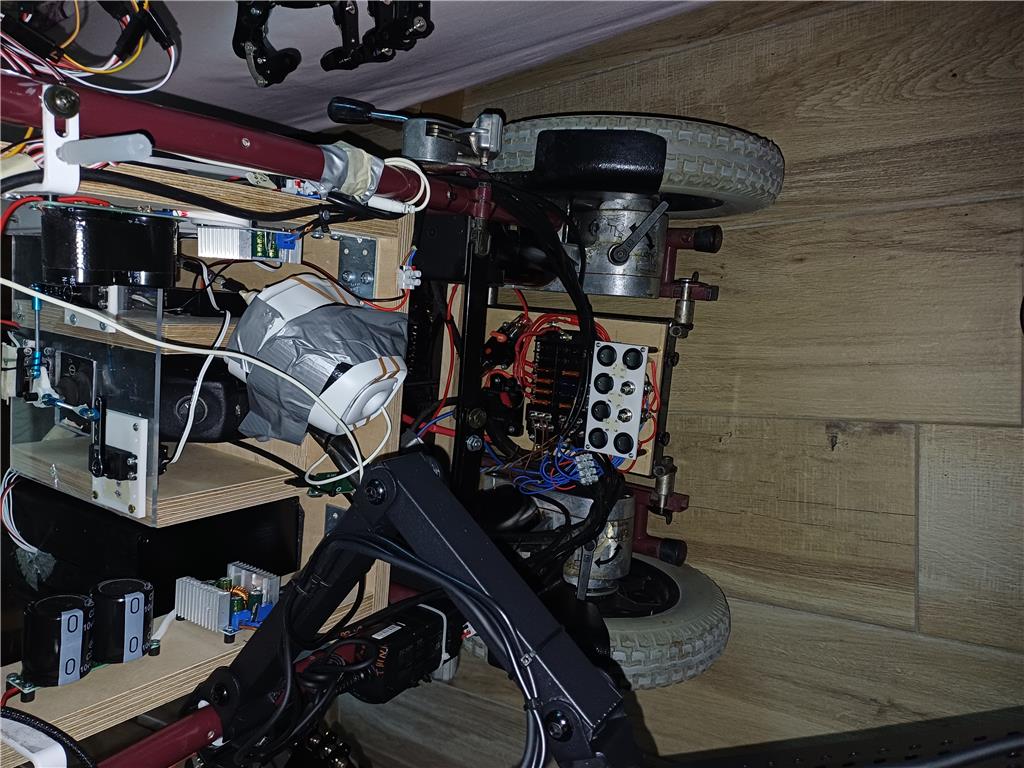
Here are 2 pictures:

Wicked cool. Nice work! I'm intrigued with your use of the TCP Script Server Raw skill for voice control. I'm also a bit frustrated with Bing's (or any other voice recognition software) lag from command to action. I understand it's the nature of the beast but it looks like you've found a way around this limitation. I'm going to look into doing what you've done with the TCP Script Server Raw skill and the cell phone for voice recognition. Hopefully I can figure it out but I'm not sure of all the steps you took to integrate your cell phone with ARC and the TCP Script Server Raw skill. This is brilliant and I'm a little dim sometimes. LOL.
Again, brilliant work. That hand and finger movement is stunning. Thanks for sharing. I'm looking forward to your next video. Hopefully you'll be showing how you set up your cell phone to work with ARC through the TCP Script Server Raw skill.
Hi Dave, with the help of synthiam support, I could publish my project. As you are interested by the setup of the cell phone with ARC. I will prepare a procedure. Very important is to be in the same network ,sbc,smartphone. sbc should have 2 wifis,local wifi and wifi to EZB. give me some time, I'll send it asap. you wrote: I'm also a bit frustrated with Bing's (or any other voice recognition software) lag from command to action. I understand it's the nature of the beast
For that reason, I moved toward a hybrid voice control setup and , as well, toward a vision control setup . So in practice, the most effective setup for me has been:
This hybrid approach gives much better flexibility than trying to rely on a single integrated skill inside ARC, especially for latency-sensitive or perception-heavy applications.
Dave, in a nutshell: Quick Start - Smartphone Voice Control
python voice_server.pyhttps://<PC_IP>:8181That's it - tap the mic and speak.
"Here is a ZIP file. It contains 5 files . Start with voice_control_setup.md, as it explains the whole setup in detail. 2 files are necessary for the voice control over smartphone.
voice_control_en.html and voice_server_en.py (use both in pair). voice_control_multilang.html and voice_server_multilang.py are (use both in pair ) are multilingual (en/de/fr). I have also included a diagram of the network architecture." fritzbox is the router,not sure the name is known in the US. setup scripts.zip
Thanks @jp15sil24. Your the best! I appreciate the time and effort you put into this. I'll be studying your approach and give it salubrious thought and consideration. I've got to say, your process looks brilliant. Thanks again!