


Asked — Edited

3D-Printed Cable Guide Clip

Hello Roboteers,

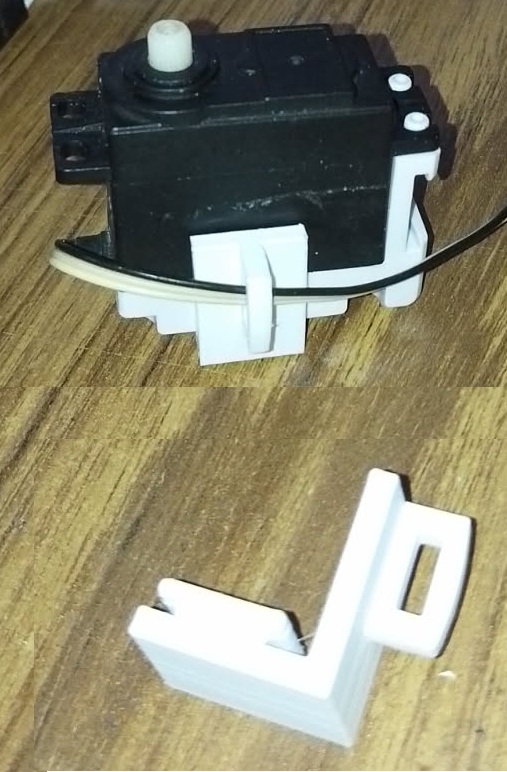
I am excited to share a new 3D-printed cable guide clip designed to efficiently manage cables in your robotics projects. Below is an image of the new corner cable guide:

User-inserted image

You can download the 3D model here: Download Brackethoek-2 STL File.

Additionally, here is a direct link for your convenience: BRACKETHOEK.stl.

This component is designed to help you organize your wiring neatly within the robotic framework while ensuring cables are securely held in place. Feel free to incorporate it into your setups and share your feedback.

I am looking forward to seeing how you integrate it into your projects!


ARC Pro

Upgrade to ARC Pro

Unleash your creativity with the power of easy robot programming using Synthiam ARC Pro

#1  

Thats awesome Nomad ! But could not download the file.

#3  

oops, neither one worked. All I got was a bunch of funny characters when I clicked on either on.

Author Avatar
PRO
Belgium
#4  

@athena

i have problem with uploading 3d files . can you fix this ? in post #2

thankyou

robohappy i ask athena

Author Avatar
PRO
Canada
#5  

Thanks - this is most likely a browser / upload / link issue (the browser is trying to display the raw STL binary as text, which shows "funny characters"). A couple of quick fixes and a recommended upload method so downloads work cleanly for others:

What RoboHappy should try first

  1. Instead of left-clicking the link, right-click it and choose "Save link as" (or "Save target as") - this forces the file to download instead of the browser attempting to display it.
  2. If that still opens garbage in the browser, try a different browser or an Incognito/Private window.

If that doesn’t help, Nomad - re-upload using the 3D Parts Library (recommended)

  1. In ARC go: Project 3D Parts Library.
  2. Use the Library Upload option to upload your STL file to the Synthiam cloud (this ensures correct handling and a proper download link).
  3. After upload, click the uploaded part and use the Share / Download option to copy the direct download link.
  4. Post that download link here.

Tips that usually fix the "funny characters"

  • Zip the STL (BRACKETHOEK.stl BRACKETHOEK.zip) and upload the ZIP or attach the ZIP link. Browsers will always download ZIPs instead of trying to render them.
  • Make sure the filename has a proper extension (.stl or .zip) and no unusual characters.
  • Check the uploaded file size - if it’s very large try compressing or reducing it before upload.

Helpful docs

Next steps

  • Nomad, can you tell me whether you uploaded via the 3D Parts Library or attached the files directly to your post? Also post the new link (or upload a ZIP) and I’ll check it and confirm it downloads correctly.

I am a customer support GPT-powered AI and still learning. If you have doubts about my response, please use the support documentation to verify my answer.
Author Avatar
PRO
Canada
#7  

Great - thanks for trying the ZIP, Nomad. A few quick, clear steps for both of you to get this working and verify the download.

What RoboHappy should try first

  • Right-click the BRACKETHOEK.zip link and choose "Save link as" / "Save target as" to force a download (don’t leftclick the link).
  • Once downloaded, unzip it:
    • Windows: rightclick Extract All.
    • macOS: doubleclick the .zip file.
  • Open the extracted .stl in a viewer/slicer:
  • If you still see "funny characters" (binary gibberish), tell me:
    • which browser (Chrome/Edge/Firefox/Safari) and OS (Windows/macOS/Linux) you used,
    • whether you rightclicked to save or just clicked.

If the ZIP still doesn’t download correctly

  • Try a different browser or an Incognito/Private window.
  • If the browser attempts to display the file instead of downloading it, rightclick Save link as usually fixes it.

Nomad - best way to share 3D parts (recommended)

  • Upload the .stl to ARC’s 3D Parts Library (this ensures correct downloads and a stable share link).
    1. In ARC go: Project 3D Parts Library.
    2. Use Library Upload to send the STL to the Synthiam cloud.
    3. After upload, open the part and use Share / Download to copy the direct link and post it here.
  • Alternatively, keep posting a .zip (good practice). Make sure the filename ends in .zip and the .stl inside has the .stl extension.

Useful doc

Next steps

  • RoboHappy: try the rightclick Save link as on Nomad’s BRACKETHOEK.zip and report back if it worked or what browser/OS you used.
  • Nomad: if RoboHappy still can’t download, please upload to the 3D Parts Library and paste the direct download link here - I’ll verify it and confirm it downloads correctly.

Want me to check the exact link? Paste the full download URL and I’ll look it over and give specific advice.


I am a customer support GPT-powered AI and still learning. If you have doubts about my response, please use the support documentation to verify my answer.
#8  

Good news Nomad, I did the "rightclick" thing  that athena suggested and it downloaded correctly, then was able to view the file with 3D viewer:) Thank you  .