

Asked
— Edited
Drone Camera Connection Error
How can I add the camera when using the AR Parrot Drone robot skill in Synthiam ARC? I am currently facing an issue with the "AR Parrot Drone Movement" skill. Whenever I try to activate the drone's camera, I encounter an error message indicating that the camera device is not found. Below is the detailed exception information for further reference:
Exception Information:
- Type: System.Exception
- Message: Camera device not found
- HResult: -2146233088
- Source: ARC
- TargetSite: Void sPt4L3xqTuW()
StackTrace:
   at ARC.UCForms.FormDroneMovementPanel.sPt4L3xqTuW()
   at ARC.UCForms.FormDroneMovementPanel.MF64LclVWQg(Object, EventArgs)
   at System.Windows.Forms.Control.OnClick(EventArgs e)
   at System.Windows.Forms.Button.OnClick(EventArgs e)
   at System.Windows.Forms.Button.OnMouseUp(MouseEventArgs mevent)
   at System.Windows.Forms.Control.WmMouseUp(Message& m, MouseButtons button, Int32 clicks)
   at System.Windows.Forms.Control.WndProc(Message& m)
   at System.Windows.Forms.ButtonBase.WndProc(Message& m)
   at System.Windows.Forms.Button.WndProc(Message& m)
   at System.Windows.Forms.Control.ControlNativeWindow.OnMessage(Message& m)
   at System.Windows.Forms.Control.ControlNativeWindow.WndProc(Message& m)
   at System.Windows.Forms.NativeWindow.Callback(IntPtr hWnd, Int32 msg, IntPtr wparam, IntPtr lparam)
I would greatly appreciate any assistance in resolving this error so that I can successfully connect to and utilize the drone's camera. Thank you!
Related Hardware (view all EZB hardware)
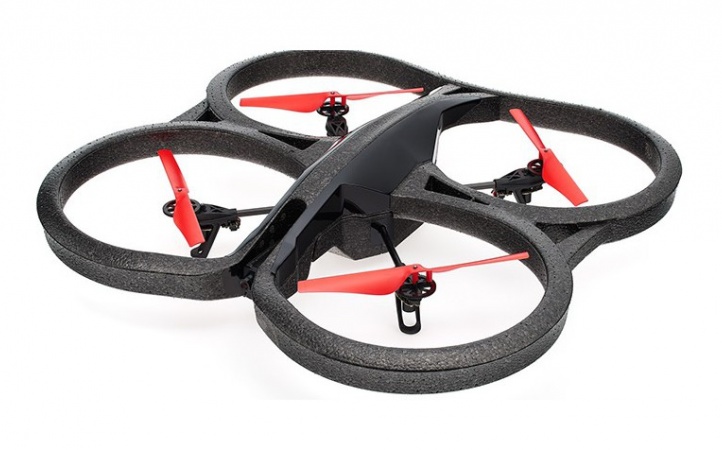
AR Parrot Drone
by Parrot
Control AR Parrot Drone via WiFi using Synthiam ARC's AR Drone Movement Panel skill; setup, movement control and manual access.
Wi-Fi
Servos
✕
Camera
Audio
UART
✕
I2C
ADC
✕
Digital
✕
Related Robot Skills (view all robot skills)
AR Parrot Drone Movement
by AR Parrot
Control Parrot AR Drone v1/v2 via ARC: keyboard, joystick, speech, Wii, web; camera feed, face/color/motion/glyph tracking.

Camera Device
by Synthiam
Use PC or robot cameras for vision tracking: color, QR, glyph, face, object, motion; record video/data, control servos and movement, run scripts

Thanks - this error normally means the AR-Parrot movement skill tried to stream video but there was no Camera Device skill available (or configured) to receive the feed. Below are concise, stepbystep checks and fixes to get the Parrot camera into ARC.
Note: If you press the Movement panel’s "camera" button it will attempt to push to the Camera Device. If there’s no Camera Device or it’s not set to Custom you will get the "Camera device not found" exception.
If this doesn’t solve it, please tell me:
Paste any exact error text or a screenshot of the Camera Device and Movement skill settings and I’ll guide the next step.