



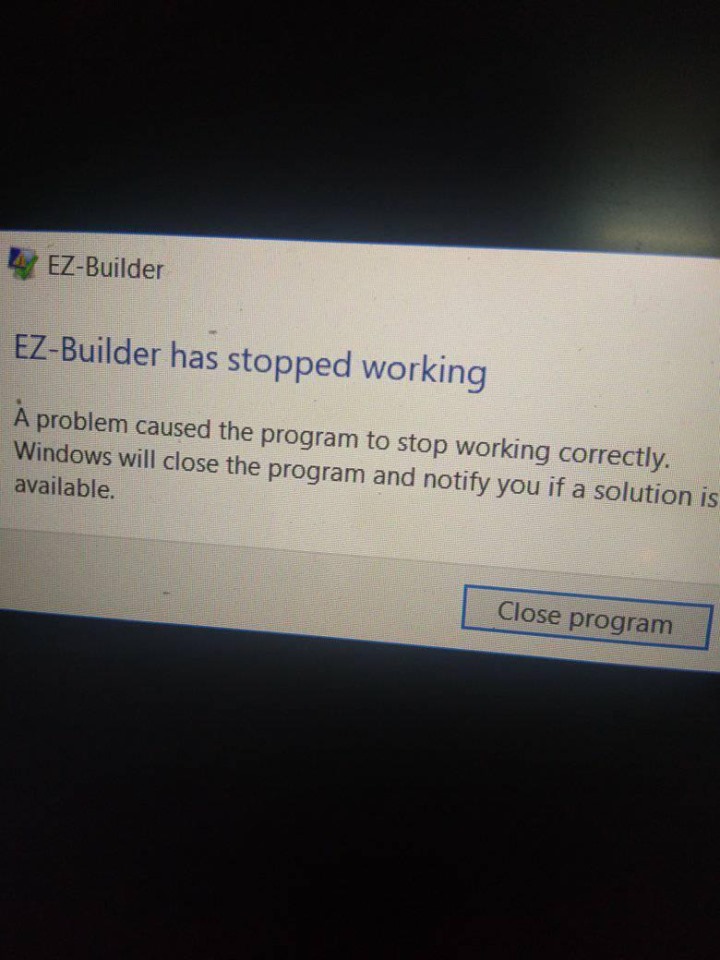
I apologize for the recent posting of questions that may be easy to fix, but I am having difficulty. There have been a number of times I've been playing with robots when the Ez_builder software suddenly shut down and reported an error like the image below? I hope someone will help me fix this.Thank you very much!

Use IF conditions rather than WAITFOR if you are wanting to verify the detected tracking type
Thank you very much, It may be the error of the code I made but I could not delete the camera 1. I used the camera the previous day but I accidentally deleted it and when I opened it again it was shown as camera 2, camera 1's commands still exist and I don't know how to delete them.
That's interesting that you can not delete camera 1. I just opened your project again and was able to remove it then save successfully. Camera 1 is located on your #2 virtual desktop. I just clicked the X up in the top right corner and after confirming that is what I wanted to do it was gone.
Maybe you could delete camera 2 and then move camera 1 back to desktop #1? You would have to edit all your commands back to camera 1 but that would make cleaner scripts and project.
Press the X button to close a control. It will prompt you if you want the control deleted, given that you haven't changed that preference. In Windows, the X button closes a window. The same X closes a control. Once you modify a project, you'll need to SAVE that project using the SAVE button. See screenshot...